
Settings
For administrators — users, access levels, defaults, integrations, and the audit log.
Nederlandse versie: /handleiding/instellingen
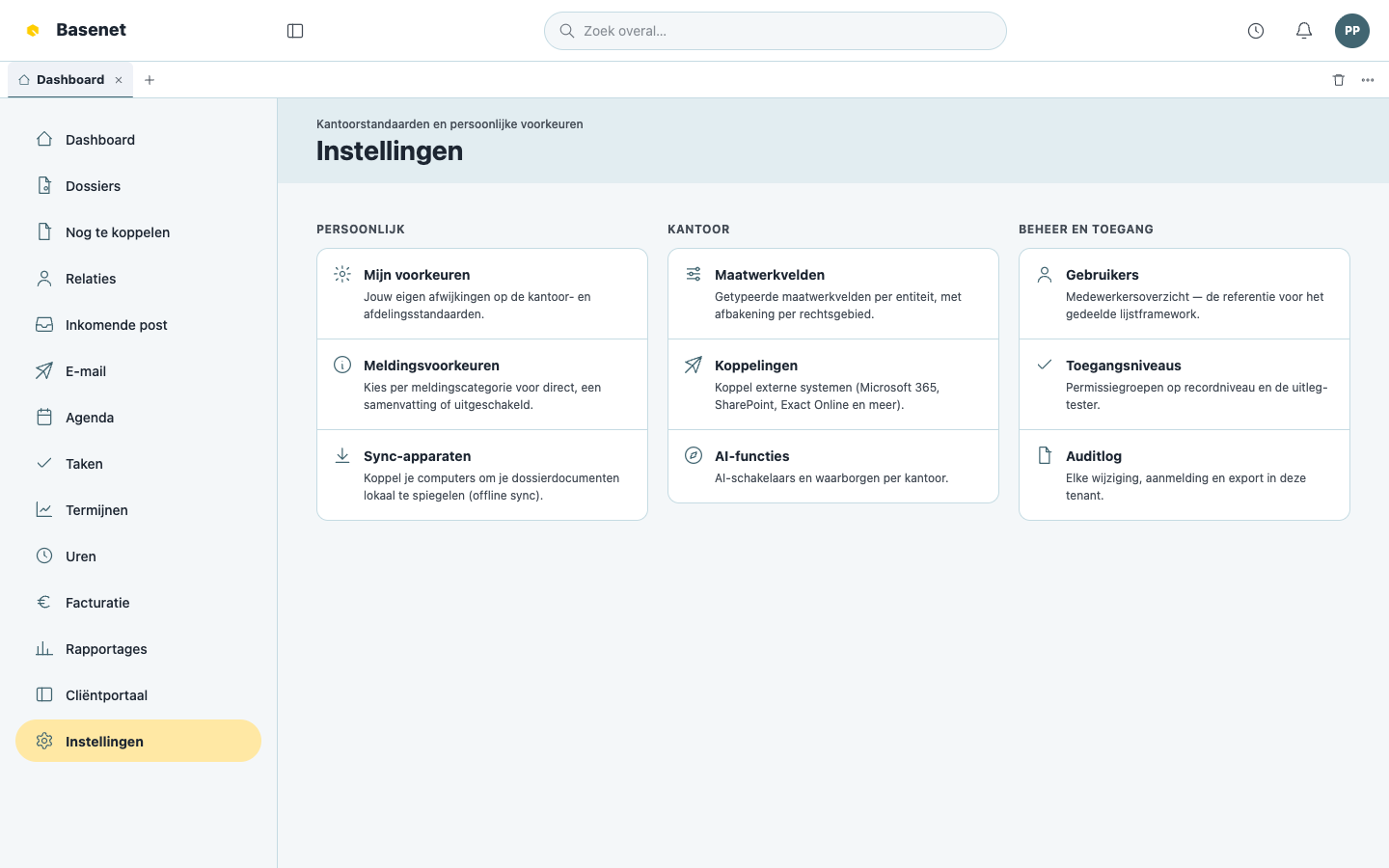
What is this? Under “Instellingen” (settings, left rail) you find firm-wide defaults and your own personal preferences. Most sections are only visible to administrators; the “Persoonlijk” (personal) group is visible to everyone. Sections are grouped into “Persoonlijk”, “Kantoor” (office), and “Beheer en toegang” (administration and access). The interface is in Dutch; on-screen names are quoted below.
Personal
My preferences (“Mijn voorkeuren”)
“Persoonlijke voorkeuren gelden alleen voor jou en krijgen voorrang op afdelings- en kantoorstandaarden.” (Personal preferences apply only to you and take priority over department and office defaults.) Think of your defaults for email archiving, time writing (default billable, rounding interval), and lists (rows per page, density “Ruim” (spacious) or “Compact”). Save with “Mijn voorkeur opslaan” (save my preference), reset with “Mijn voorkeur wissen” (clear my preference).
Office (administrators only)
Administrative defaults (“Administratieve standaardinstellingen”)
Firm-wide default values, optionally refined per “Afdeling” (department) — “Specifiekere instellingen krijgen voorrang.” (More specific settings take priority.) Settings include:
- “Briefpapierkop” and “Briefpapiervoet” (letterhead header and footer) for generated firm letterhead;
- “Standaardinstellingen e-mailarchivering” (email archiving defaults — automatic archiving, default folder);
- “Standaardinstellingen tijdschrijven” (time-writing defaults — default billable, rounding interval in minutes);
- “Lijstvoorkeuren” (list preferences) and “Standaardinstellingen workflow” (workflow defaults).
For every setting you see the “Huidige effectieve waarde” (current effective value) and where it comes from (your personal setting, the department default, the office default, or the product default). Save with “Kantoorstandaard opslaan” (save office default) or “Afdelingsstandaard opslaan” (save department default).
Integrations (“Koppelingen”)
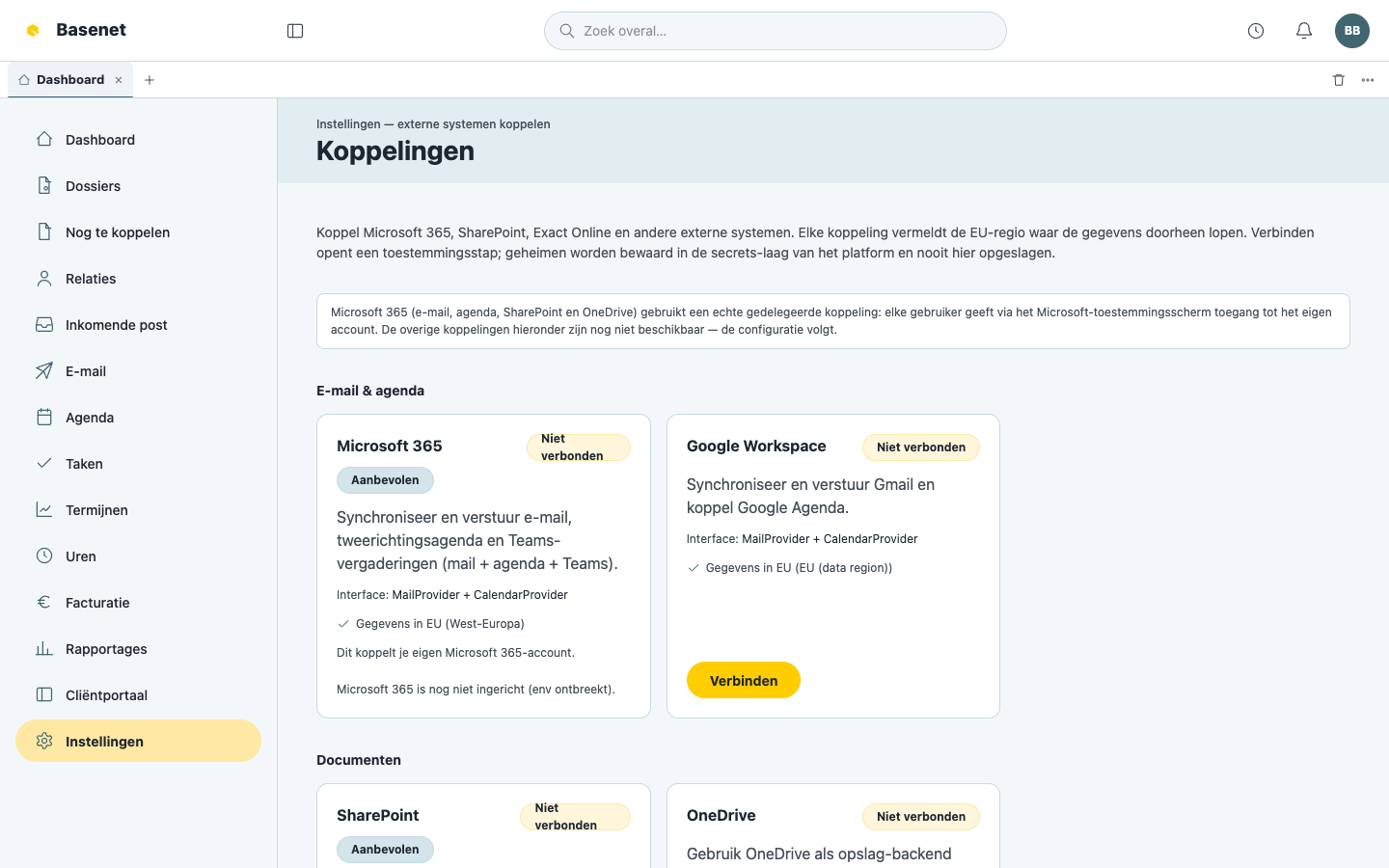
Connect external systems: “E-mail & agenda” and “Documenten” (Microsoft 365, SharePoint, OneDrive), “Boekhouding” (accounting — for example Exact Online), “Betalen” (payments), “E-factureren” (e-invoicing — Peppol), “Identiteit & KYC”, and “Ondertekenen” (e-signing). Every integration states the EU region its data flows through; an integration outside the EU is blocked under the EU-only policy. Connect with “Verbinden” (this opens a consent step); disconnect with “Verbreken”.
For Microsoft 365, each employee additionally gives their own consent for their own mailbox via the “Koppel Microsoft 365” button that appears in the app.
The video shows a clearly labelled, privacy-safe illustration of the Microsoft sign-in steps; it is not a live sign-in. The example address is synthetic, the password field contains only fixed bullets, and MFA — when required by tenant policy — and the real consent screen are protected. The callback and connected status are synthetic too; only the mailbox folder tree comes from the real Basenet interface.
This second recording proves the real Microsoft Graph send flow: a sanitized test message is composed in Basenet, sent through Microsoft 365, and then read back from the Sent Items folder. Addresses in the recording are replaced with a synthetic .invalid address.
Administration and access (administrators only)
Users (“Gebruikers”)
The staff overview: who has access, with which email address, and whether the account is “Actief” (active). This is also where you manage departments and roles — the first steps of the Getting started: office setup guide.
Access levels (“Toegangsniveaus”)
Record-level permission groups: who may see which matters, relations, and documents. With the explain-tester “Toegang verklaren” (explain access) you check why someone can or can’t do something: choose “Gebruiker” (user), “Toegangsniveau” (access level), “Afdeling van record” (record’s department), and “Bewerking” (operation), click “Verklaren” (explain), and you see literally the deciding rule.
Custom fields (“Maatwerkvelden”)
Your own fields per entity (for example an extra field on matters), with “Sleutel” (key), “Label”, “Type”, “Verplicht” (required), and a scope per practice area. Create one with “Nieuw veld” (new field) → “Veld aanmaken” (create field).
AI features (“AI-functies”)
The master controls for the AI layer, with each feature set to “Aan” (on) or “Uit” (off): “Dossierassistent (Q&A met bronnen)” (matter assistant with cited Q&A), “Dossiersamenvatting” (matter summary), “Tijdlijn van de zaak” (case timeline), “Termijnen extraheren” (deadline extraction), “Concepten (e-mail)” (email drafting), and “Factuurnarratief” (invoice narrative). When a feature is off, its surfaces are absent and the server refuses calls to it. AI proposes and staff accept; nothing is written automatically.
Under “Modelaanbieders” (model providers), an administrator can configure a provider key, select the models the firm may use, choose the active model, and test the connection. If no provider is selected, the AI features use the model platform configured for the installation. The page warns that Anthropic and OpenAI process requests outside the EU: identifiers are replaced with placeholders before sending, and a request that still contains a recognisable identifier is refused. Review your own processing agreements before enabling such a provider.
For client or NOvA accountability, export the per-matter “AI-gebruiksrapport” (AI usage report) from the matter.
Audit log (“Auditlog”)
The “Auditlog” is “alleen-toevoegen, manipulatiebestendig” (append-only, tamper-resistant): every change, login, and export in the office, with “Tijdstip” (timestamp), “Actor”, “Actie” (action), and the data involved. Useful for questions like “who deleted this document?” — and a requirement for after-the-fact accountability.