
Client onboarding
Recording Wwft client acceptance and giving the client access to the portal.
Nederlandse versie: /handleiding/client-onboarding
What is this? Before a firm starts work for a client, that client’s identity must be established and checked. This is a legal requirement (Wwft, the Dutch anti-money-laundering law) — not an optional step. After acceptance you can give the client access to the client portal (“cliëntenportaal”), so they can view their own documents, messages, and invoices. The interface is in Dutch; on-screen names are quoted below.
Part 1 — Client acceptance (Wwft)
When is a check required?
For (almost) every new client you must establish who the client is before substantive work starts. This is called client due diligence, or CDD. Unsure in a specific situation? Check with a partner or your firm’s compliance lead.
How to record the acceptance
- Create the client as a relation (see Relations) and open that relation’s “Compliance” tab.
- Is it a company? Pull the registry data via “KvK-import” → “Importeren uit KvK” → “Opzoeken” (look up) → “Toepassen” (apply). Registered “Ultimate beneficial owners” (UBOs) are shown as part of this.
- For an individual, record the “BSN” if needed via “BSN instellen” → “Valideren en opslaan”. The BSN is stored with extra protection and only visible with a separate permission.
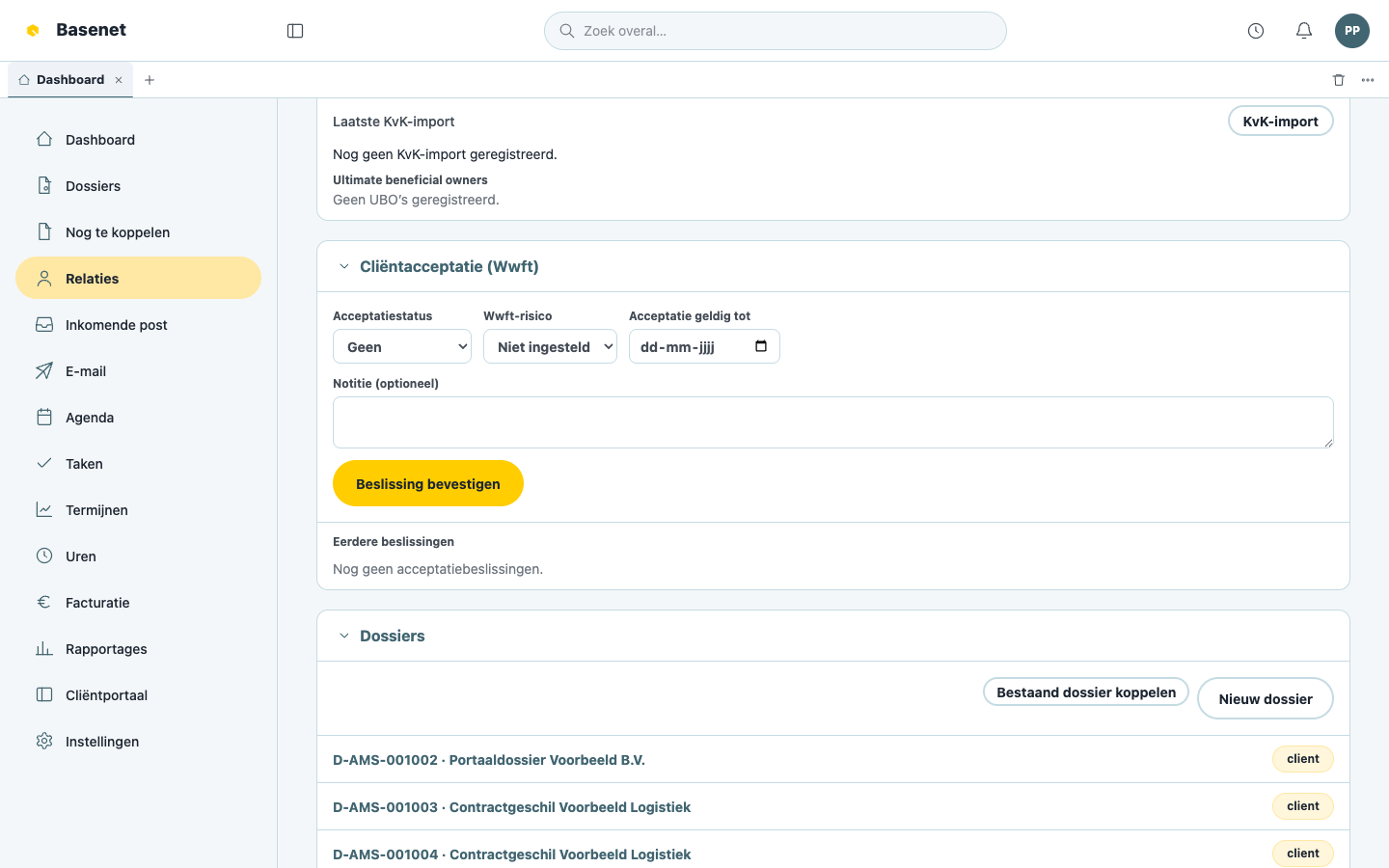
- Assess the risk and record the decision under “Cliëntacceptatie (Wwft)”: choose the status (“Geaccepteerd”, “Afgewezen”, or “In behandeling”), the “Wwft-risico” (“Laag”, “Middel”, or “Hoog”) and the valid-until date, optionally add a “Notitie”, and click “Beslissing bevestigen” (confirm decision).
What to pay extra attention to
- UBO — for organizations, the person who ultimately controls the organization (the ultimate beneficial owner) must be established too.
- PEP — if a client or UBO holds (or held) a politically prominent position, enhanced checks are required; the “PEP-status” lives on the Compliance tab.
- BSN — never copy it loose into emails or documents outside the matter.
- If the check surfaces anything unusual (PEP signal, unclear UBO structure, sanctions hit), report it to a partner or the compliance lead before the matter proceeds.
How to see whether acceptance is complete
Open the relation → “Compliance” tab. There you find the “Acceptatiestatus” (acceptance status), the validity date, and the “Eerdere beslissingen” (earlier decisions). If the status isn’t Geaccepteerd, complete the acceptance first.
Part 2 — Giving the client portal access
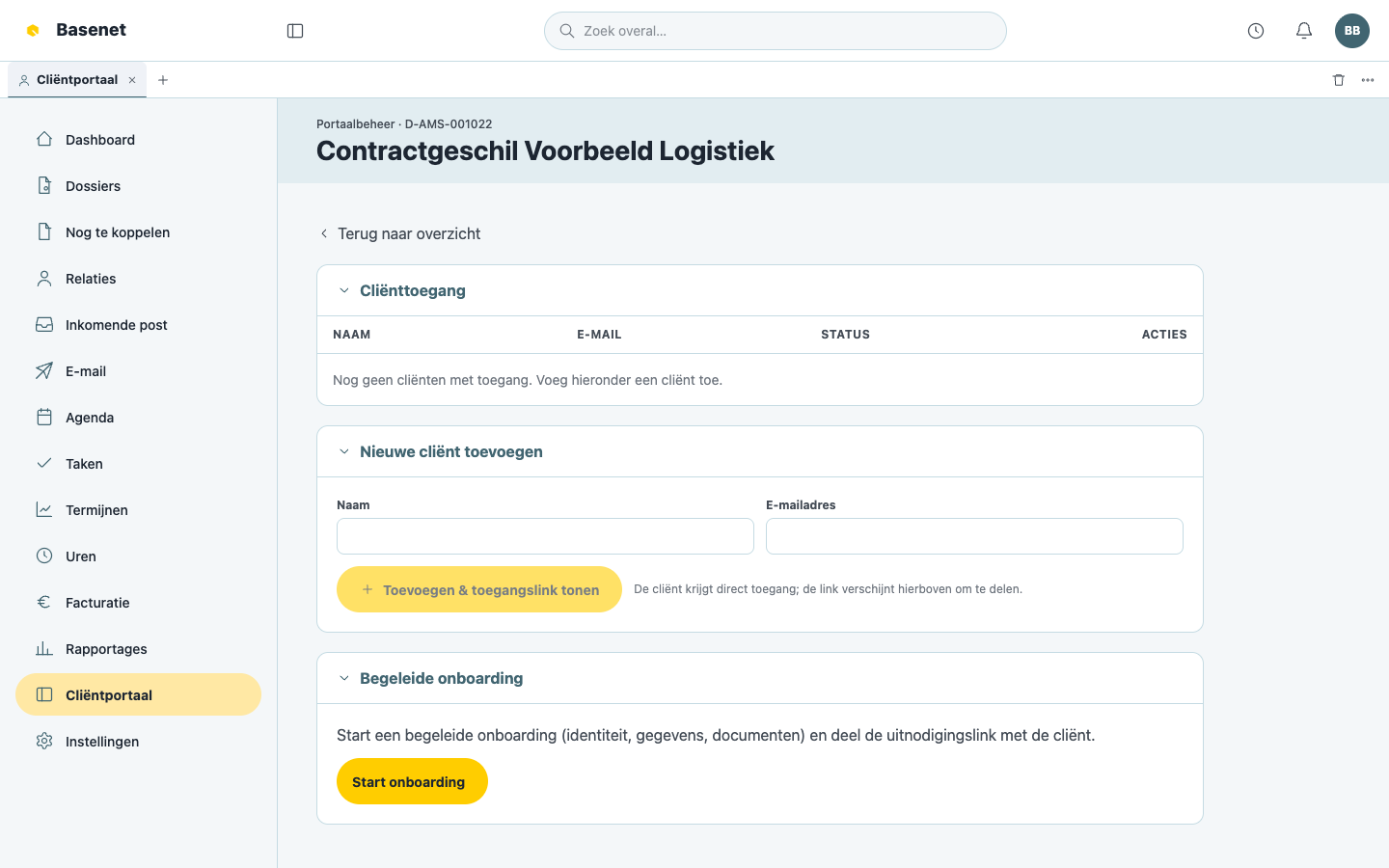
- Click “Cliëntportaal” in the left rail. You land on “Portaalbeheer” (portal administration) — “Beheer cliënttoegang en onboarding per dossier” (manage client access and onboarding per matter).
- Open the matter you want to arrange access for.
- Under “Cliënttoegang” (client access) you see who already has access. Click “Nieuwe cliënt toevoegen” (add new client) and enter the client’s email address.
- Want to walk the client step by step through the intake (verify details, supply documents)? Start the “Begeleide onboarding” (guided onboarding) — the client receives a personal link.
The client then logs in with a one-time login link by email — no password. What the client sees exactly is described on the Client portal page, which you can share with clients.
Which documents the client sees is up to you: only items with “Publiceren naar portaal” set to Yes (see Documents & email) and appointments with the “Zichtbaar voor cliënt in portaal” checkbox ticked.