
Matter assistant
Basenet's AI features — asking questions about a matter, a summary, a case timeline, extracting deadlines, drafts, an invoice narrative, and the AI usage report.
Nederlandse versie: /handleiding/dossierassistent
What is this? The matter assistant (“Dossierassistent”) is the “AI-assistent” tab in the matter overview: you ask a question about the matter there and get an answer with cited sources from the matter’s own documents. The AI layer also provides a number of other features inside a matter: a summary, a timeline, proposed deadlines, draft replies, and an invoice narrative. One principle applies everywhere: the AI makes a proposal, you check it, adjust it, and confirm it — nothing is ever written automatically. The interface is in Dutch; on-screen names are quoted below.
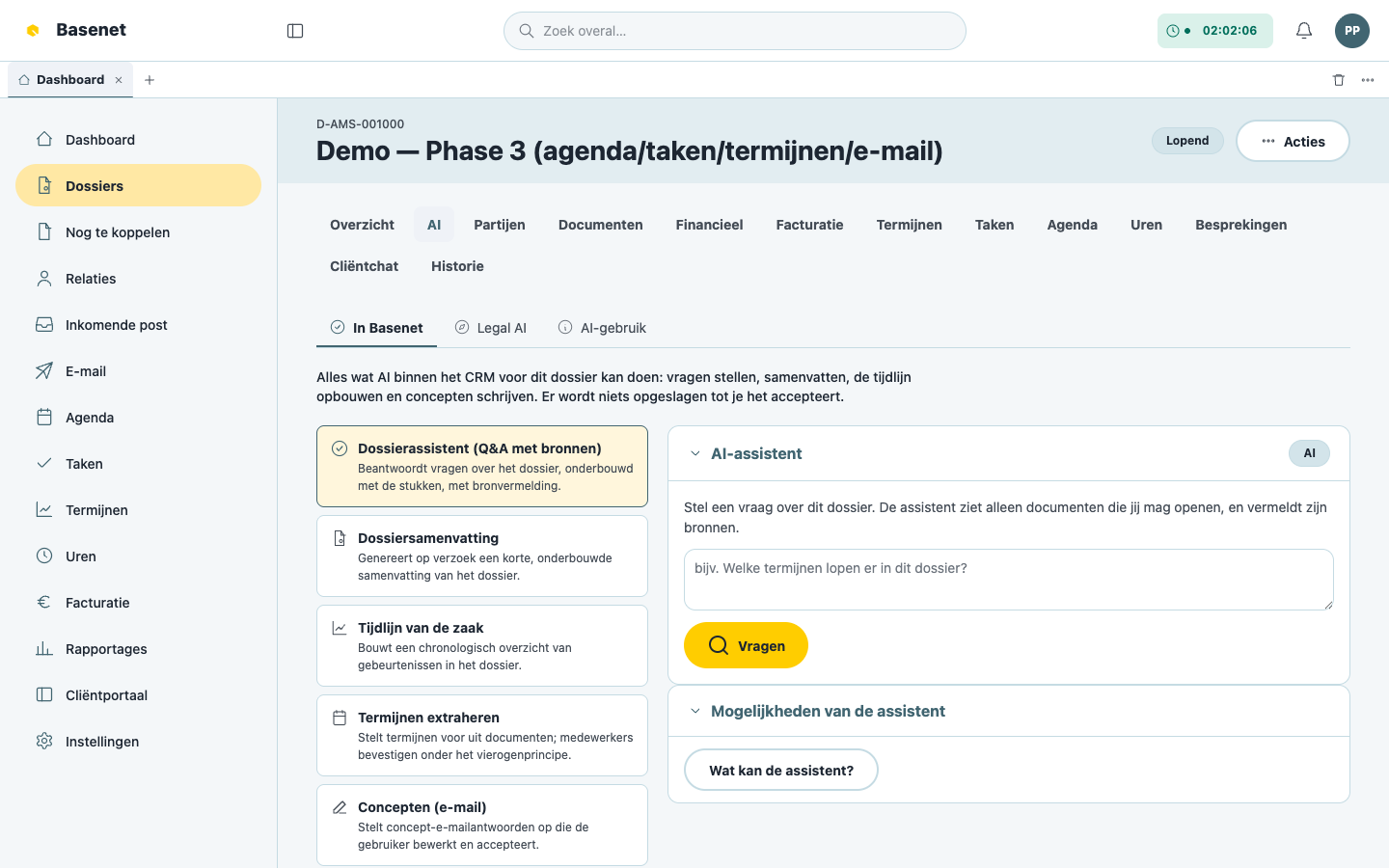
Where do I find this?
Open a matter and click the “AI-assistent” tab. This tab is only visible if your firm has turned the AI feature on — see Settings.
How to ask the matter assistant a question
“Stel een vraag over dit dossier. De assistent ziet alleen documenten die jij mag openen, en vermeldt zijn bronnen.” (Ask a question about this matter. The assistant only sees documents you’re allowed to open, and cites its sources.)
- Open the matter and click the “AI-assistent” tab.
- Type your question in the field (for example “Welke termijnen lopen er in dit dossier?” — which deadlines are running in this matter?).
- Click “Vragen” (ask).
- Read the “Antwoord” (answer) and the accompanying “Bronnen” (sources) — each citation points to the source document it came from.
- Is the answer useful? Click “Opslaan als dossiernotitie” (save as matter note) or “Taak hiervan maken” (make a task of this).
Every answer carries the “AI” label and the notice “AI-gegenereerd — controleer dit altijd aan de hand van de brondocumenten.” (AI-generated — always verify this against the source documents.)
Matter summary
A short, substantiated summary of the matter — not present automatically, you generate it yourself.
- Open the matter and go to the AI summary.
- Click “Vernieuw samenvatting” (refresh summary).
- Read the summary; at the bottom you see when it was “Laatst bijgewerkt” (last updated).
Case timeline
A chronological overview of events in the matter, built by the AI from the matter’s documents and activity.
Extracting deadlines
Basenet reads the matter’s documents and proposes deadlines — these are AI proposals, each is set as a draft and still needs to be confirmed by a human under the four-eyes principle.
- Click “Termijnen voorstellen” (propose deadlines).
- Wait for Basenet to finish reading the documents.
- Check every “Voorgestelde termijn” (proposed deadline) in the list “Voorgestelde termijnen (controleer voordat je accepteert)” (proposed deadlines — check before you accept).
- Click “Accepteren als concept” (accept as draft) per deadline — the deadline gets the notice “AI-voorstel — vereist menselijke bevestiging” (AI proposal — requires human confirmation) and you still need to confirm it under the four-eyes principle afterward, as described in Deadlines.
Drafts (email)
A draft reply to an email, which you edit before accepting it.
- Optionally fill in what the reply should address (for example “Ontvangst bevestigen en de ontbrekende stukken opvragen” — confirm receipt and request the missing documents).
- Click “Concept genereren” (generate draft).
- Edit the draft and the “Onderwerp” (subject).
- Click “Accepteren als conceptdocument” (accept as draft document) — the draft is saved with the matter’s documents, like every content-producing AI feature. Don’t want to use it? Click “Verwerpen” (discard).
Invoice narrative
A proposed narrative for an invoice line.
- Click “Narratief voorstellen” (propose narrative).
- Click “Kopiëren” (copy) and paste the proposed narrative into an invoice line — see Time & billing.
AI usage report
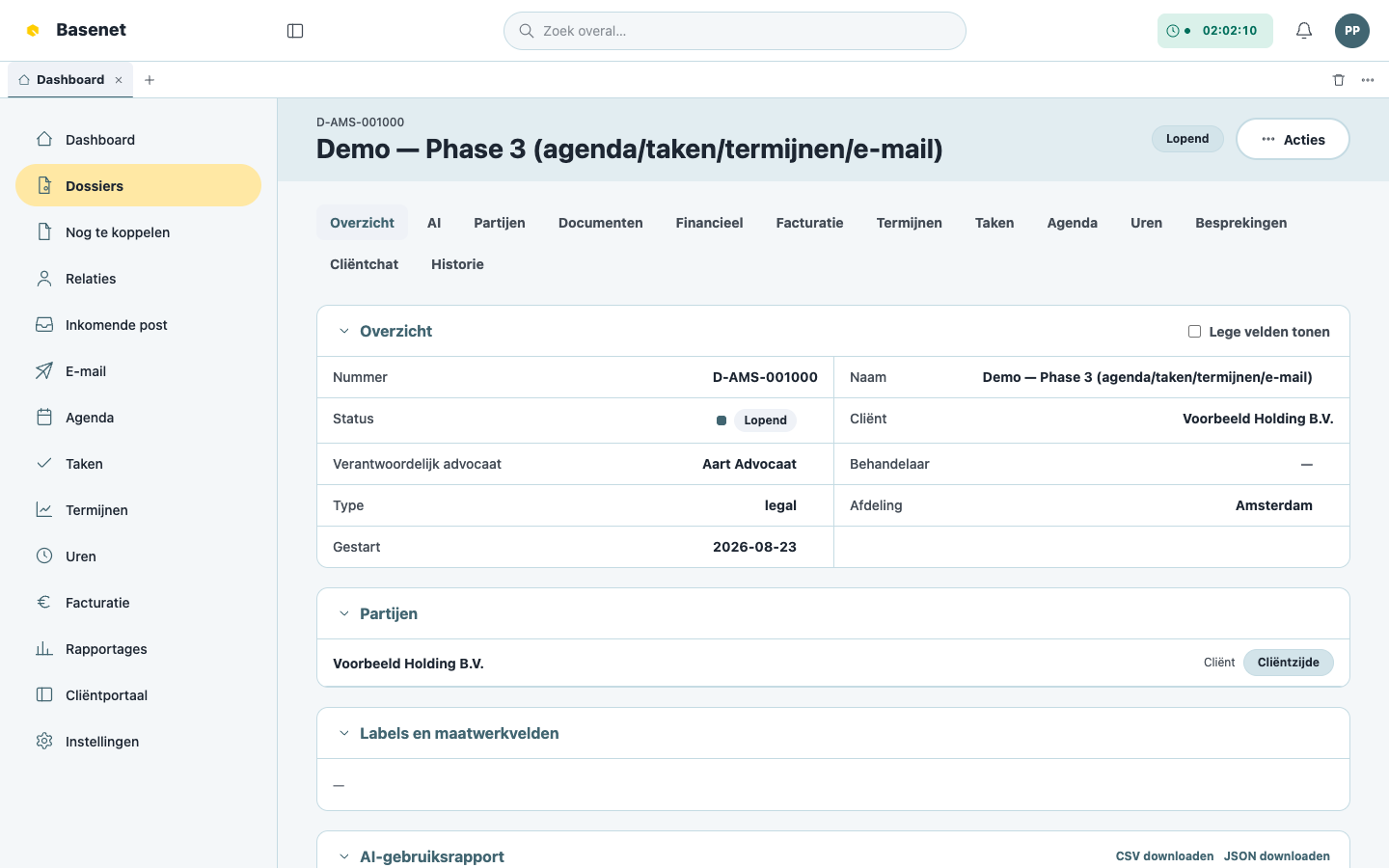
For clients or the NOvA (Dutch bar association) you export, per matter, an overview of every AI action taken on that matter: which feature, which model, how many calls, and whether anonymization was applied.
- Open the matter.
- Click “AI-gebruiksrapport exporteren” (export AI usage report).
- Hand over the report to a client or the NOvA on request.
Turning AI features on or off
Every AI feature has its own switch, per firm. If a feature is off, it’s absent everywhere and the server refuses every call. You manage this under Settings — only accessible to administrators.
One principle to remember
Wherever Basenet uses AI, the AI always makes a proposal. Nothing is ever finalized automatically — you check it, adjust it, and confirm it. In the app you recognize AI content by the “AI” label and the notice “AI-gegenereerd — controleer dit altijd aan de hand van de brondocumenten.” (AI-generated — always verify this against the source documents.)