
Client portal
For the firm's clients — passwordless login, following your matter, documents, messages, and payments.
Nederlandse versie: /handleiding/portaal
What is this? This page is for you as a client of the law firm. The client portal is a separate, secure environment (“Beveiligde omgeving · Basenet”), distinct from the firm’s internal staff app, built so you can keep track of your own matter. The portal itself is in Dutch; the on-screen names are quoted below.
How to log in — no password
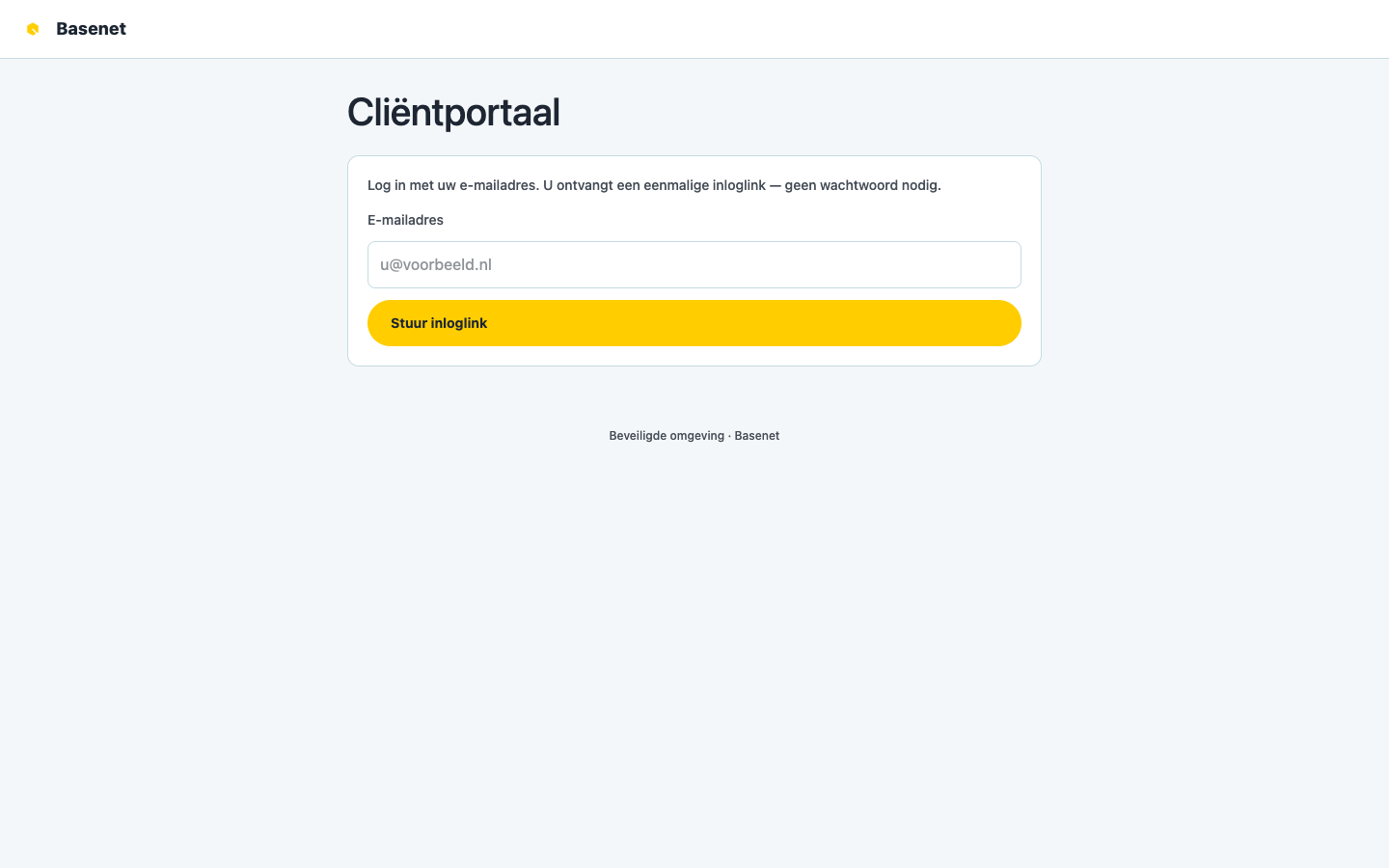
- Open the portal link your lawyer or the firm sent you.
- Enter your “E-mailadres” and click “Stuur inloglink” (send login link).
- You receive a one-time login link by email. Check your spam folder too.
- Click the link in the email — you’re logged in immediately, no password needed. If the link has expired or was already used, simply request a new one.
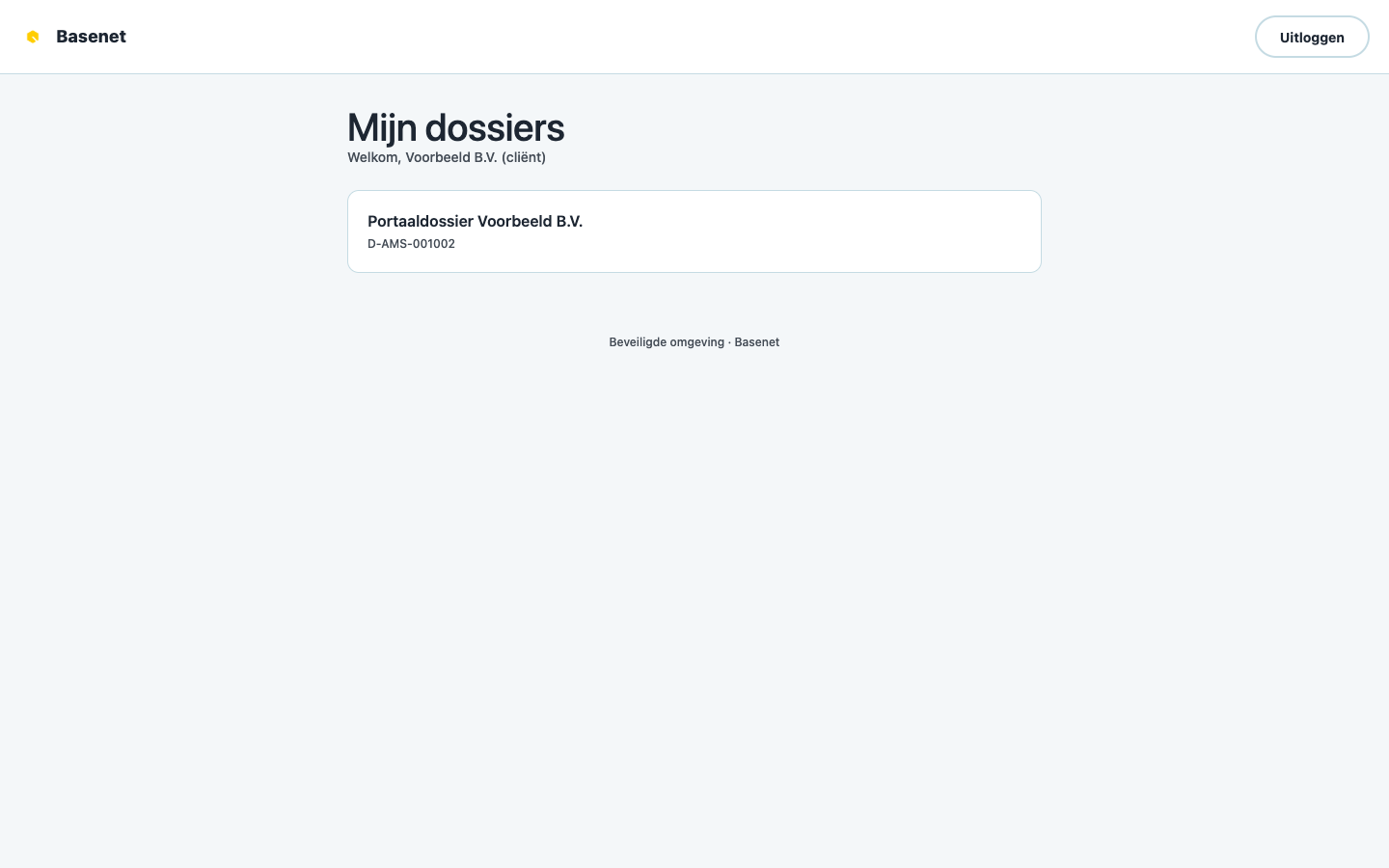
After logging in you see “Mijn dossiers” (my matters): the cases the firm has given you access to. Click “Open dossier” (open matter).
What you see in a matter
A matter has three tabs:
Overview (“Overzicht”)
- The “Dossieroverzicht” (matter overview) with “Status” (for example “Loopt” (running), “In afwachting” (on hold), or “Afgerond” (closed)), “Soort zaak” (case type), “Rechtsgebied” (practice area), “Behandelaar” (handling lawyer), and “Uw kenmerk” (your reference).
- “Documenten” — the items your lawyer shared with you, with a “Download” button.
- “Komende afspraken” (upcoming appointments) — the appointments the firm has shared with you.
- “Activiteit” (activity) — a timeline of what happened (document shared, message, invoice, appointment).
Messages (“Berichten”)
- Open the “Berichten” tab.
- Type your question or remark under “Nieuw bericht” (new message) and click “Versturen” (send).
Use this channel for questions about your case: it’s more secure than regular email and lands directly in the right matter.
Financial (“Financieel”)
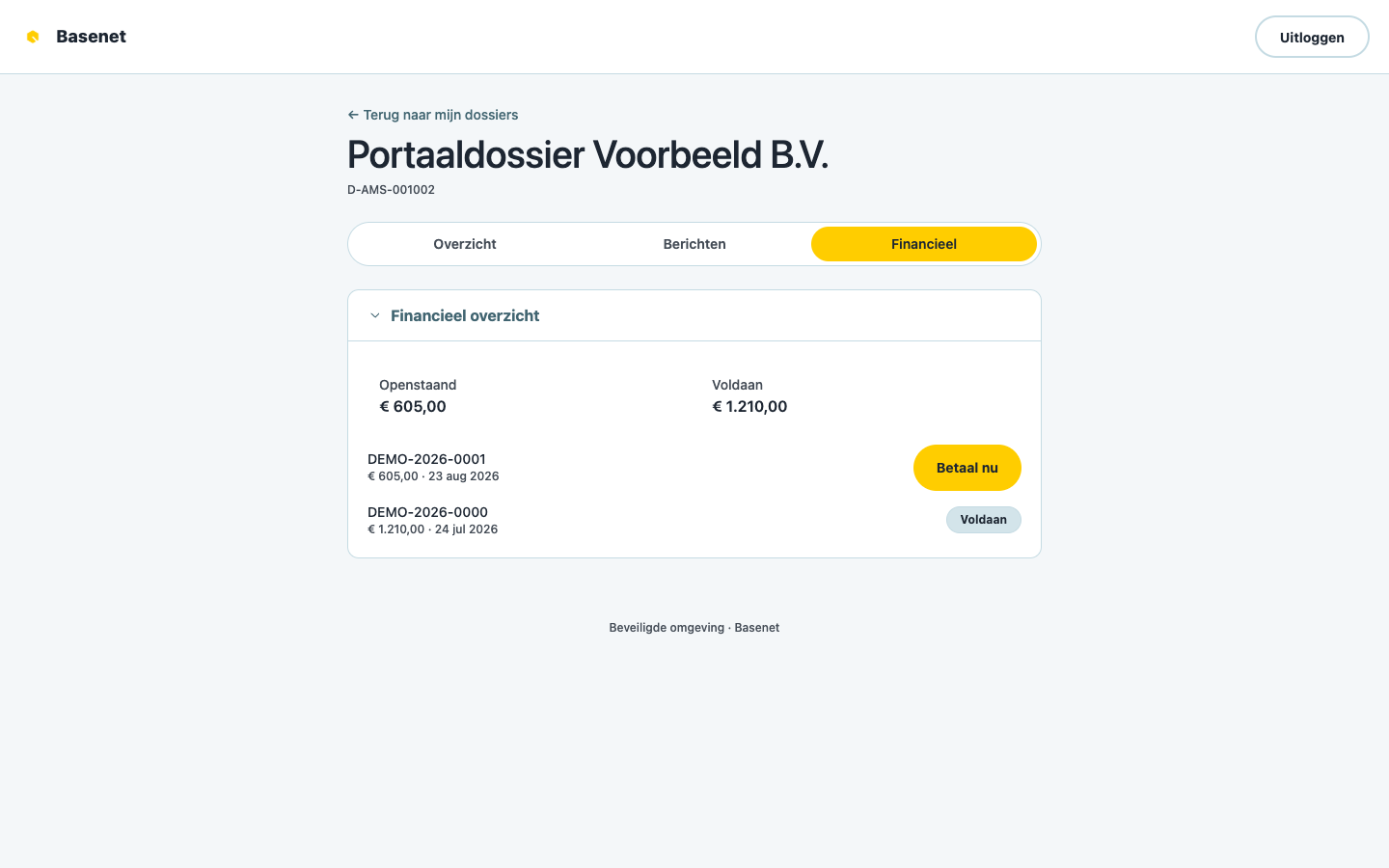
- The “Financieel overzicht” (financial overview) shows what is “Openstaand” (outstanding) and “Voldaan” (paid).
- For an outstanding invoice, click “Betaal nu” (pay now) and complete the payment. Afterwards the invoice shows as “Voldaan” in your overview.
How to upload a document yourself
- Open the matter and choose “Document uploaden” (upload document).
- Choose the file and click “Uploaden”.
- Your document is checked by the firm before it appears in your matter; until then it shows “Wacht op goedkeuring” (awaiting approval).
How to sign a document electronically
If the firm asks for your signature, you receive a personal signing link.
- Open the link. You see the “Document” and the “Status”.
- Review the document and click “Onderteken” (sign).
Questions or problems?
Contact your lawyer via the “Berichten” tab, or via the contact details you received from the firm. The portal doesn’t replace personal contact — it makes sure you can find documents, messages, appointments, and payments in one place.