
Calendar & tasks
Scheduling appointments (also visible to the client), seeing colleagues' availability, and following up on tasks.
Nederlandse versie: /handleiding/agenda-en-taken
What is this? The “Agenda” (calendar) is your week view of appointments; “Taken” (tasks) is your list of work and follow-up. Link both to a matter so appointments and tasks also show up on the matter overview. The interface is in Dutch; on-screen names are quoted below.
How to schedule an appointment
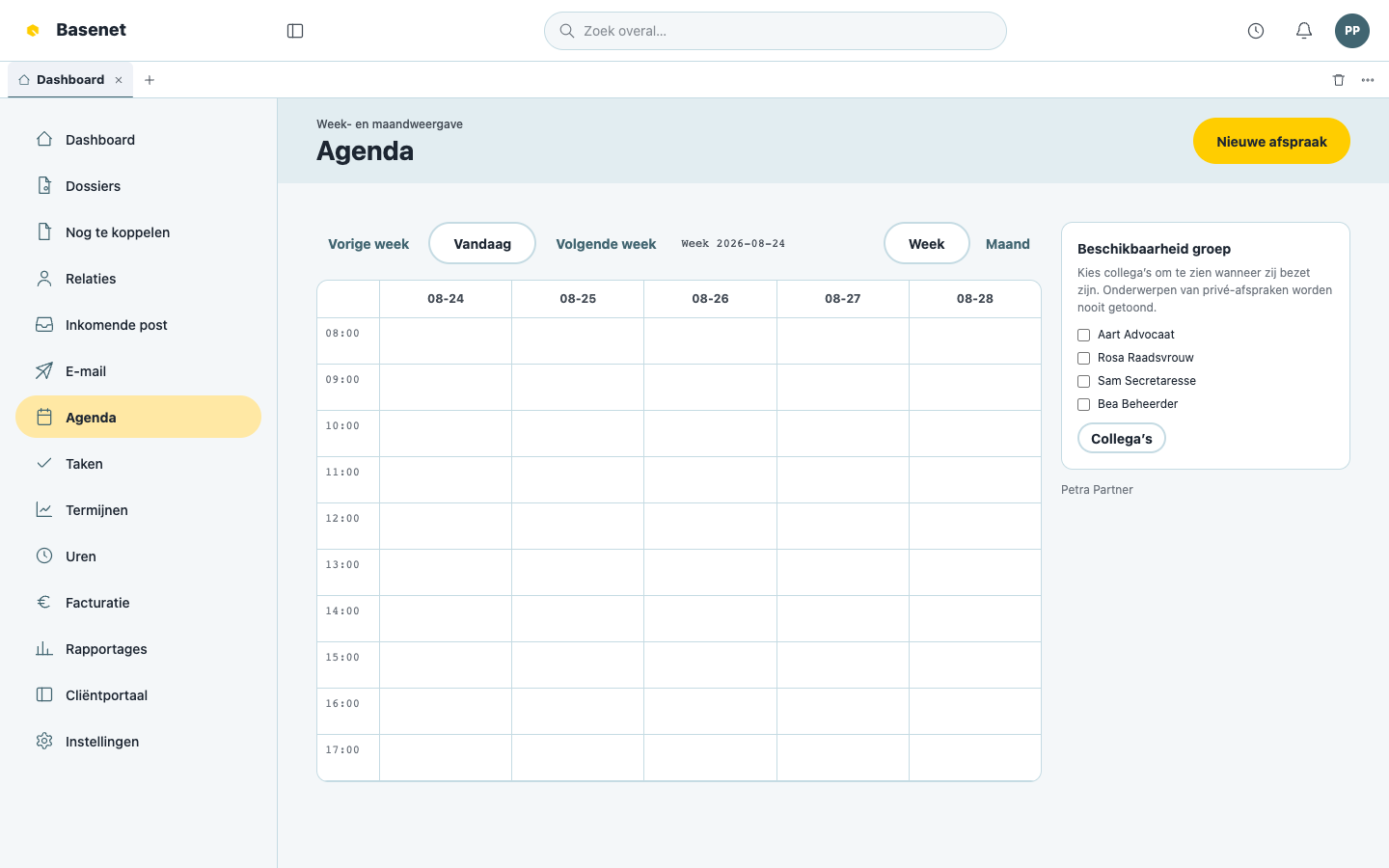
- Click “Agenda” in the left rail. You see the week view; navigate with “Vorige week” (previous week), “Volgende week” (next week), and “Vandaag” (today).
- Click “Nieuwe afspraak” (new appointment).
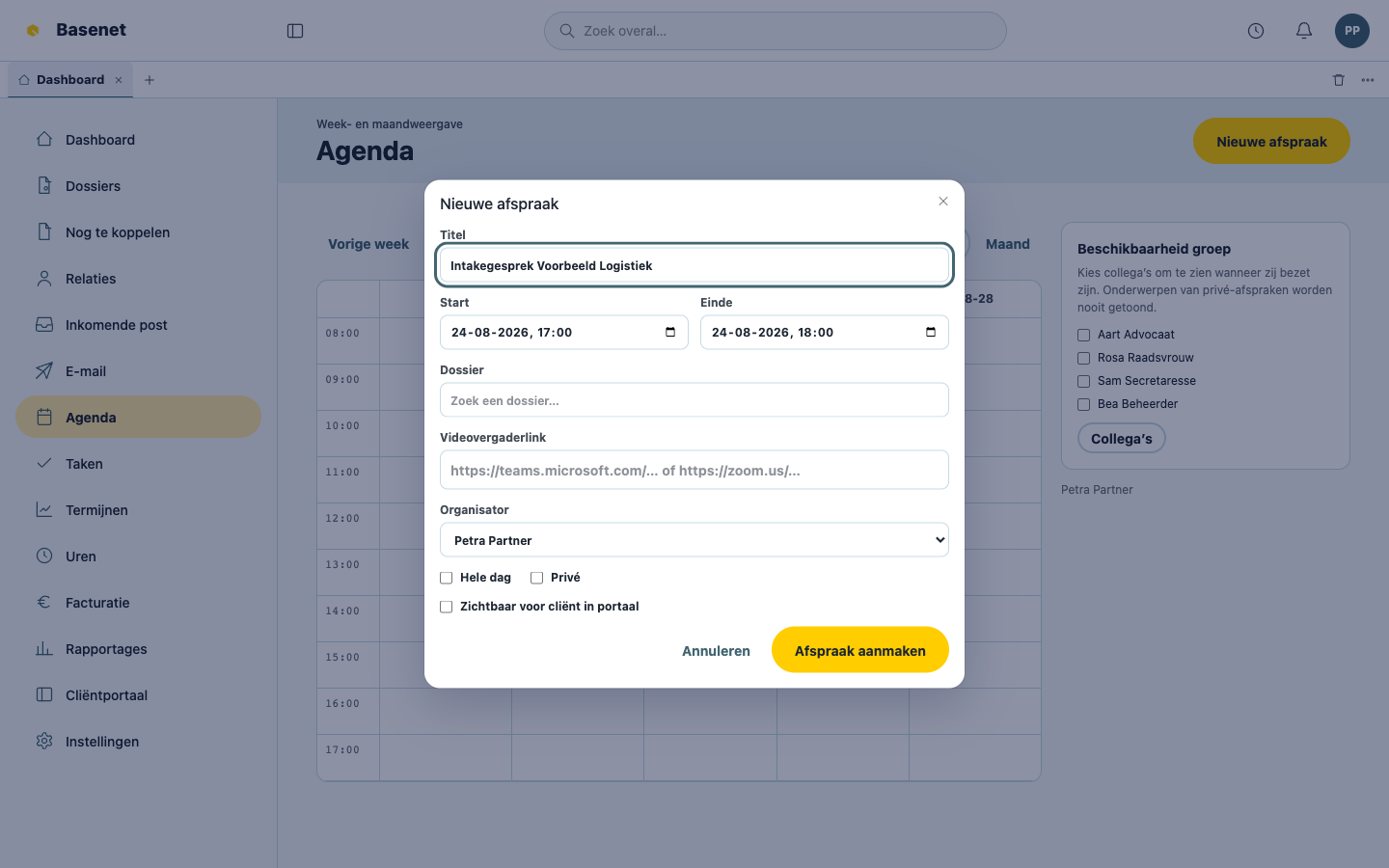
- Fill in “Titel” (title), “Start”, and “Einde” (end) (or tick “Hele dag”, all day).
- Link the appointment to a “Dossier” (“Zoek een dossier…”) — it then also appears on that matter’s Agenda tab.
- Optional: tick “Privé” (private) (colleagues then only see a busy block, never the subject) or “Zichtbaar voor cliënt in portaal” (visible to client in portal) (the client then sees the appointment in the client portal).
- Click “Afspraak aanmaken” (create appointment).
How to see when colleagues are available
- Open “Agenda” and go to “Beschikbaarheid groep” (group availability).
- Under “Collega’s” (colleagues), choose who you want to see.
- You see their busy blocks for the week. Subjects of private appointments are never shown.
How to create a task
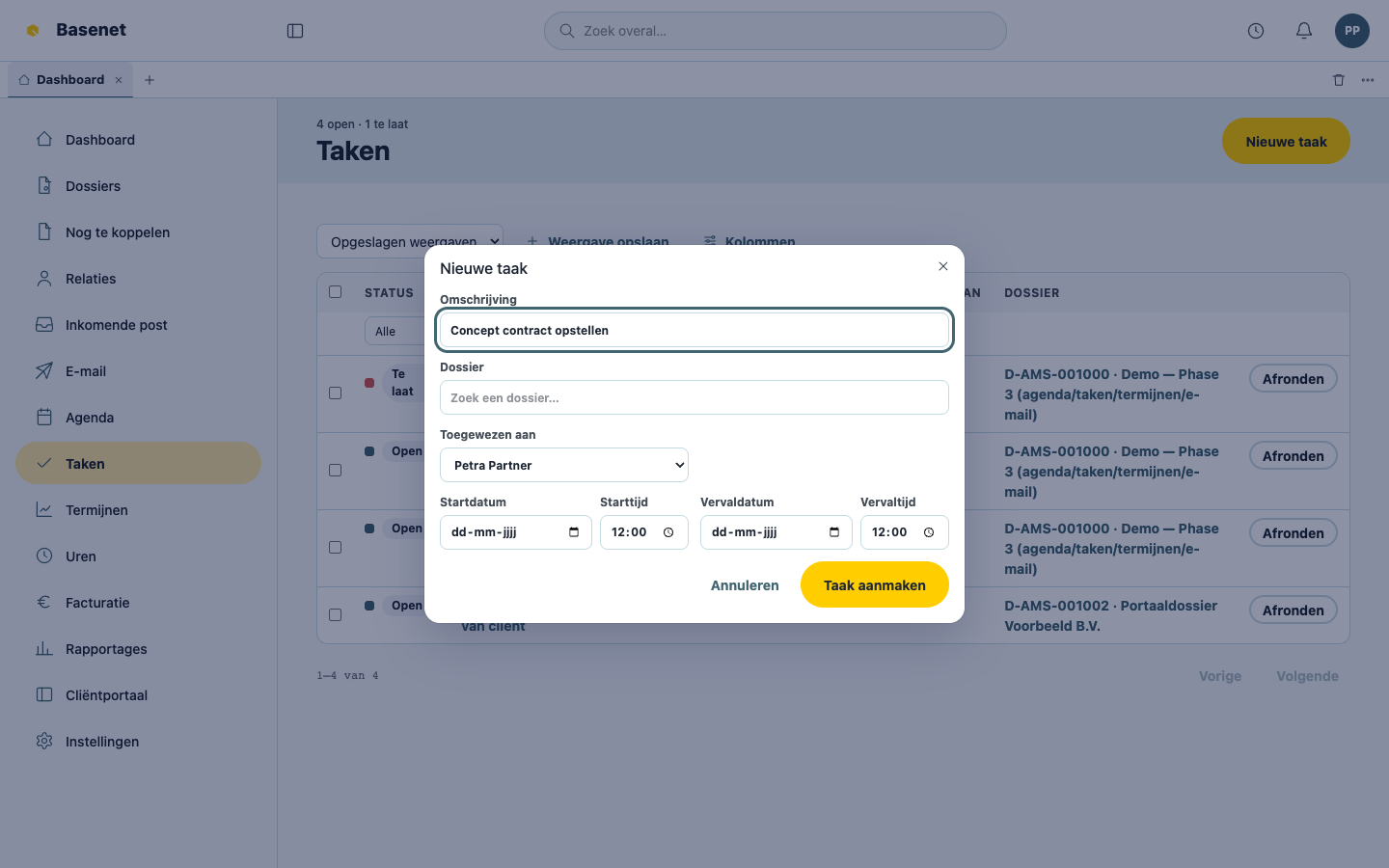
- Click “Taken” in the left rail.
- Click “Nieuwe taak” (new task).
- Fill in the “Omschrijving” (description), link a “Dossier” (“Zoek een dossier…”), and choose “Toegewezen aan” (assigned to) and a “Vervaldatum” (due date).
- Click “Taak aanmaken” (create task).
How to follow up on tasks
- The task list shows per task the “Status” (Open, In behandeling, Gepland, Afgerond, Geannuleerd), “Vervaldatum”, “Toegewezen aan”, and “Dossier”. Overdue tasks are flagged “Te laat” (overdue); filter on them with “Alleen te laat” (overdue only).
- Complete a task with “Afronden” (complete).
- Your own open tasks also show on the “Dashboard” under “Mijn taken”; the tasks for one case are on the matter’s “Taken” tab.