
Relations
Recording clients, opposing parties, and contacts, KvK import, Wwft data, and merging duplicates.
Nederlandse versie: /handleiding/relaties
What is this? A relation (“relatie”) is any person or organization your firm records: clients, opposing parties, contacts, and employees. Matters, invoices, and portal access always hang off a relation. The interface is in Dutch; on-screen names are quoted below.
How to create a new relation
- Click “Relaties” in the left rail.
- Click “Nieuwe relatie” (new relation).
- Under “Soort” (type), choose “Particulier” (individual), “Bedrijf” (company), “Contactpersoon” (contact person), or “Medewerker” (employee).
- Fill in the details: for an individual, “Voornaam” (first name), “Achternaam” (last name), “Initialen” (initials), “Geboortedatum” (date of birth); for a company, “Bedrijfsnaam” (company name) and “KvK-nummer” (trade register number). Fill in “E-mail” and “Telefoon” where possible.
- Choose “Afdeling” (department) and “Toegangsniveau” (access level) if needed.
- Click “Relatie aanmaken” (create relation).
If the new relation resembles an existing one (same KvK number, email address, name plus date of birth, or company name), Basenet immediately shows “Mogelijke duplicaten” (possible duplicates). Click “Openen” (open) to use the existing relation, or deliberately choose “Toch aanmaken” (create anyway).
The tabs of a relation
- “Details” — contact details, “KvK-nummer”, “IBAN”, “Btw-nummer” (VAT number). Adjust via “Relatie bewerken” (edit relation) → “Wijzigingen opslaan” (save changes).
- “Compliance” — Wwft data: see below.
- “Dossiers” — which matters this relation is a party in, and with which “Rol” (role).
- “Historie” — change history.
Viewing and editing relation details
The overview displays populated fields and core identity information. “Lege velden tonen” (show empty fields) reveals empty fields. This preference is remembered per user and also applies to matter details.
Choose “Relatie bewerken” for the full form on the same page, including the firm’s custom fields. “Annuleren” (cancel) and “Wijzigingen opslaan” (save changes) are at the top. Use a field’s pencil to edit one value without opening the full form. Existing permissions determine which values you can change; centrally maintained courts and prosecutors are not ordinary editable company relations.
How to import company data from the KvK register
- Open a company relation and go to the “Compliance” tab.
- Under “KvK-import”, click “Importeren uit KvK” (import from KvK).
- Enter the 8-digit KvK number and click “Opzoeken” (look up).
- Review the “Wijzigingen” (changes) shown (including any “Ultimate beneficial owners”) and click “Toepassen” (apply).
Wwft data on the Compliance tab
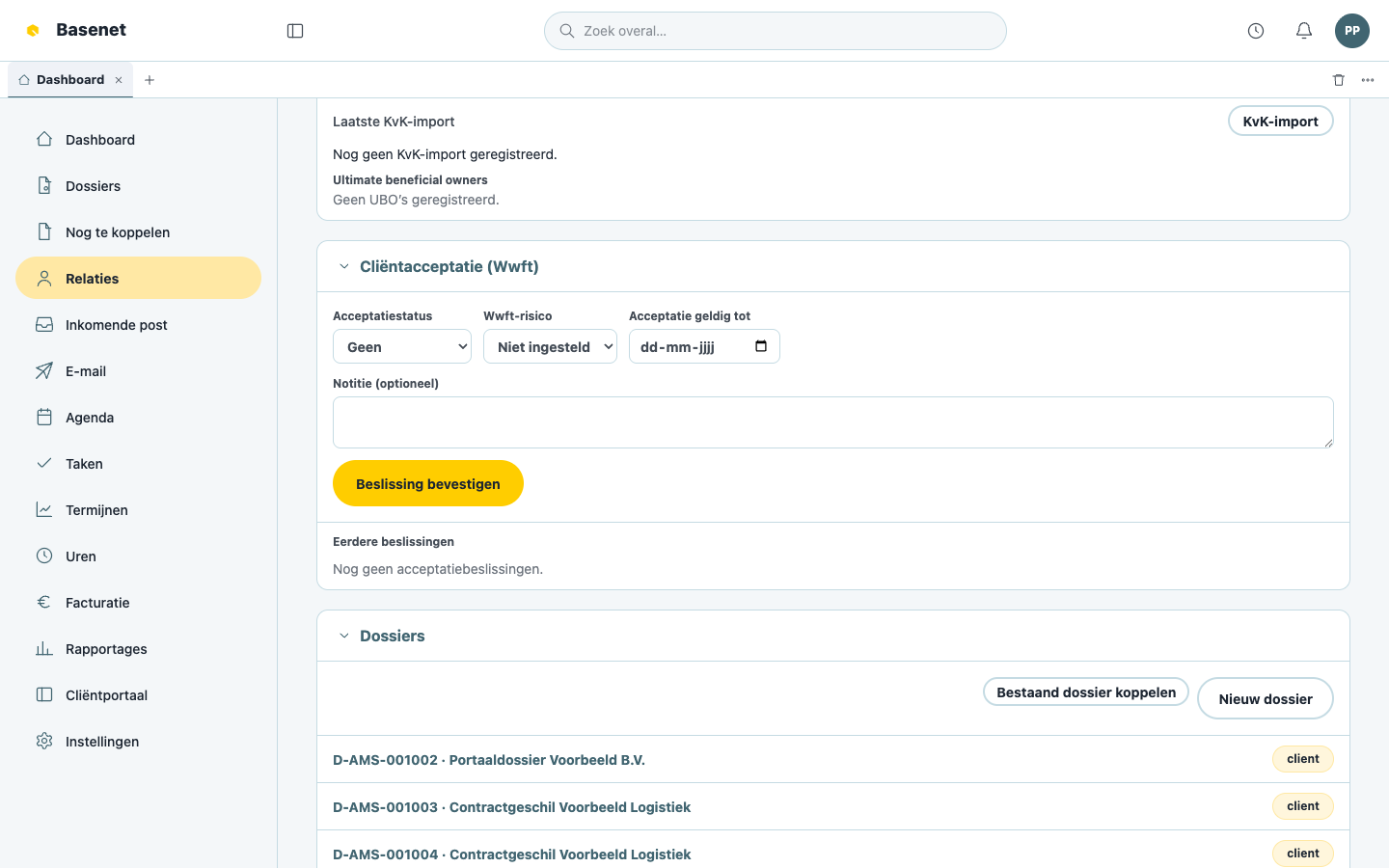
This is where the firm records client acceptance (required under the Wwft — see the Glossary):
- “Cliëntacceptatie (Wwft)” (client acceptance) — status “Geen” (none), “In behandeling” (in progress), “Geaccepteerd” (accepted), or “Afgewezen” (rejected), with “Wwft-risico” (Wwft risk) “Laag” (low), “Middel” (medium), or “Hoog” (high) and a valid-until date. Record with “Beslissing bevestigen” (confirm decision); earlier decisions stay visible under “Eerdere beslissingen”.
- “PEP-status” and “Sanctiemarkering” (sanctions flag).
- “BSN” (citizen service number) — set via “BSN instellen” (set BSN) → “Valideren en opslaan” (validate and save) (Basenet checks the 11-test). The BSN is stored with extra protection and only visible with a separate permission (“BSN-permissie vereist”, BSN permission required).
The full acceptance process for new clients is on Client onboarding.
How to merge duplicates
Two registrations of the same person or company are merged — this never happens automatically; a human choice is always required.
- On the “Relaties” page, click “Duplicaten beoordelen” (review duplicates).
- Per group you see the matching relations, with the reason (“Zelfde KvK-nummer” (same KvK number), “Zelfde e-mailadres” (same email address), “Zelfde naam en geboortedatum” (same name and date of birth), or “Zelfde bedrijfsnaam” (same company name)) and a “Aanbevolen winnaar” (recommended winner).
- On the relation that should remain, choose “Deze relatie behouden” (keep this relation) and click “Samenvoeging beoordelen” (review merge).
- On the confirmation screen, check the “Winnaar (blijft zichtbaar)” (winner, stays visible), the “Verliezer (blijft bewaard voor herstel)” (loser, kept for recovery), and the “Te verplaatsen verwijzingen” (references to move: matter parties, documents, invoices, appointments, and so on).
- Click “Samenvoeging bevestigen” (confirm merge).
Made a mistake? Under “Recente herstelbare samenvoegingen” (recent recoverable merges), use “Ongedaan maken” (undo) → “Herstel bevestigen” (confirm recovery) to reverse the merge exactly.