
Documents & email
Managing matter documents, versions, sharing and e-signing, filing email, and processing incoming post.
Nederlandse versie: /handleiding/documenten-en-email
What is this? Everything related to a case — documents, emails, notes, scans — belongs in the matter’s document management, not scattered across your own computer or personal mailbox. That way anyone working on the case (with the right permissions) can find it again. The interface is in Dutch; on-screen names are quoted below.
How to upload a document to a matter
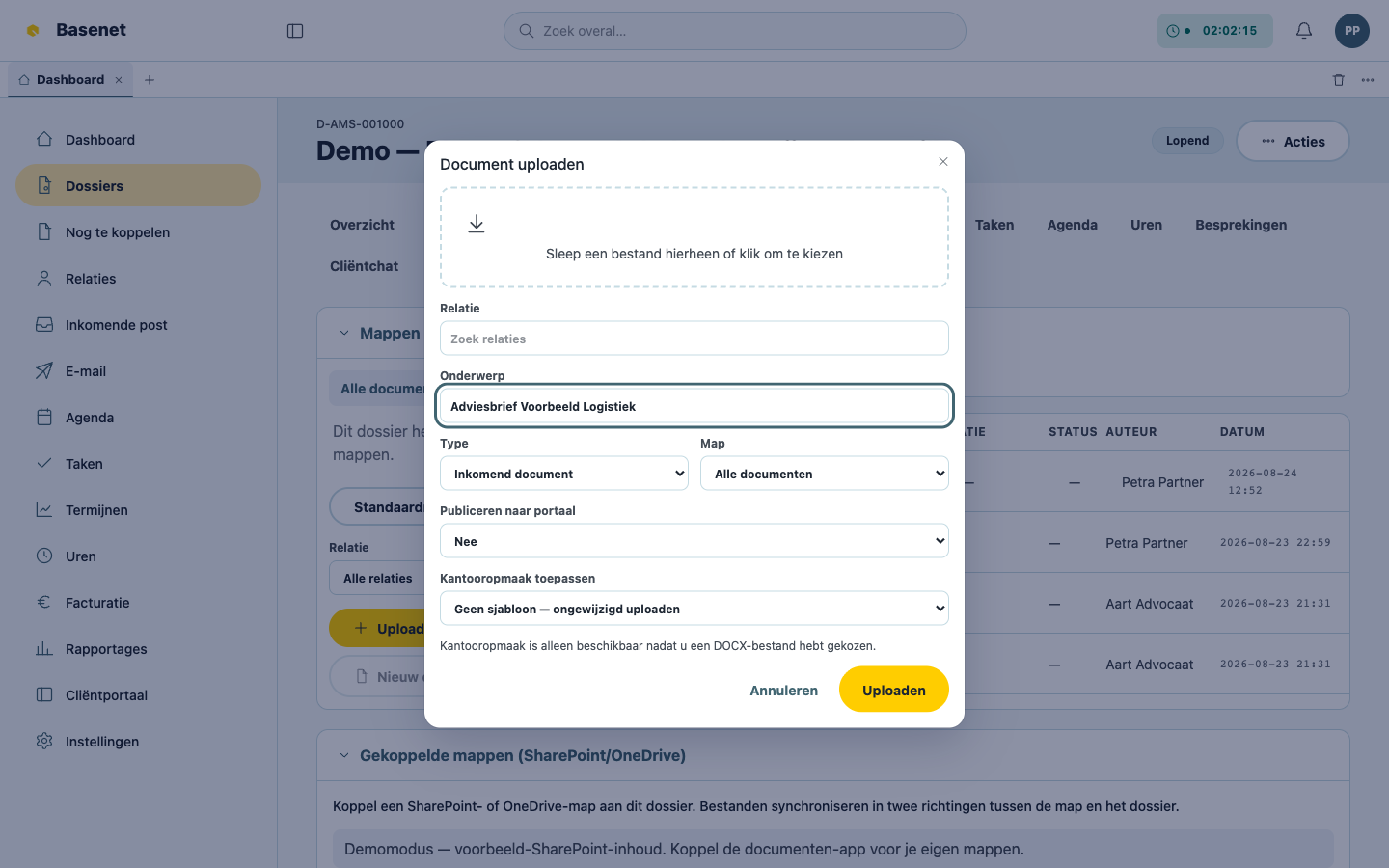
- Open the matter and click the “Documenten” tab.
- Click “Uploaden” (upload).
- Drop a file in the upload area (“Sleep een bestand hierheen of klik om te kiezen”) and fill in the subject (“Onderwerp”), the type (“Type” — e.g. Inkomend document, Notitie, Scan), and a folder (“Map”) if needed.
- To share the document with the client right away, set “Publiceren naar portaal” (publish to portal) to “Ja” (yes) (or “Ja, met melding”, yes with notification).
- Click “Uploaden”.
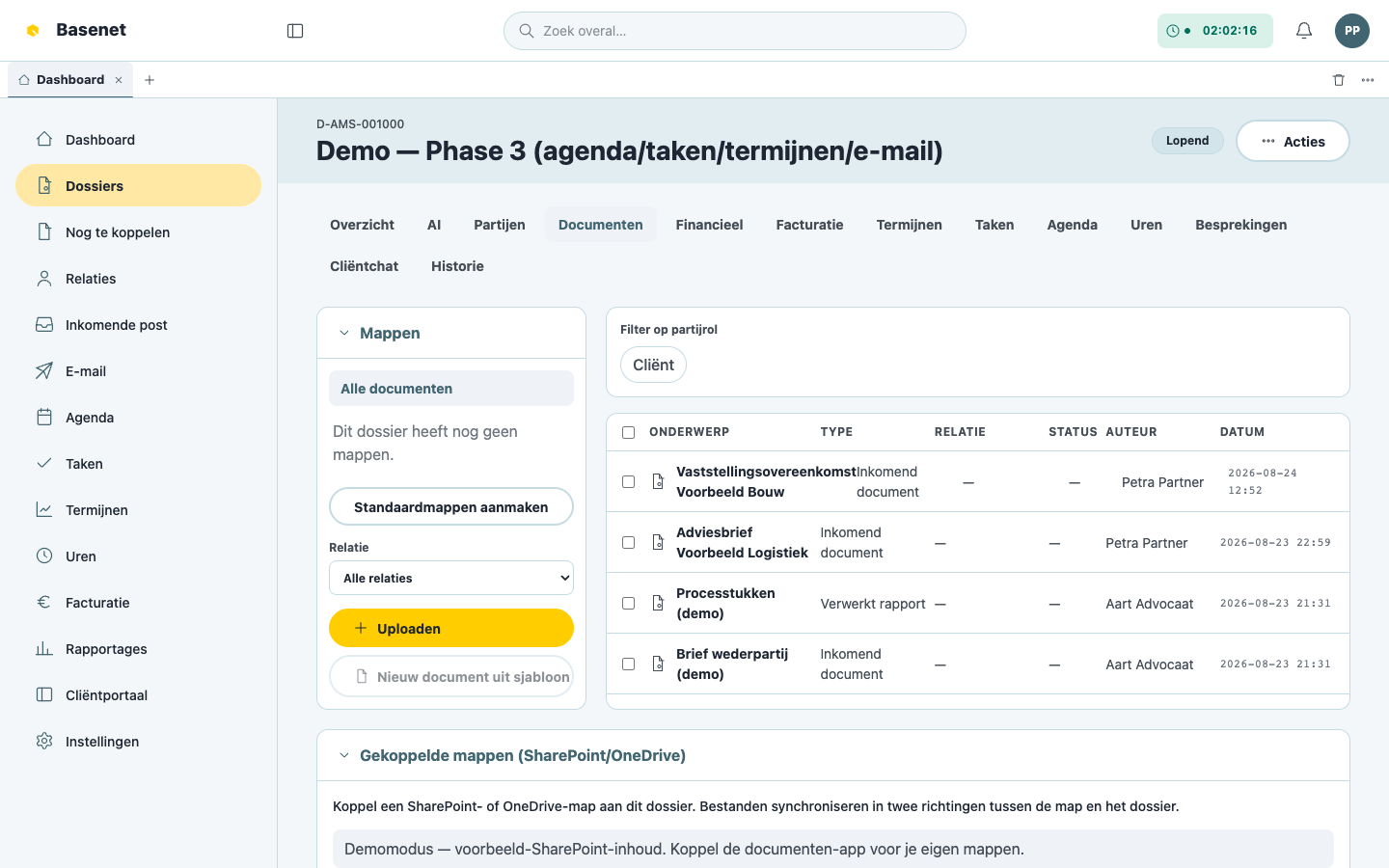
If an identical file already exists in the matter, Basenet asks whether to “Bestaand openen” (open existing) or “Opslaan als nieuwe versie” (save as new version). If the matter has no folders yet, use “Standaardmappen aanmaken” (create standard folders).
How to work with versions
- Open the document from the “Documenten” tab.
- Under “Versiegeschiedenis” (version history) you see every version with “Bron” (source), “Auteur” (author), and “Datum” (date).
- For an older version, click “Openen” (open), “Downloaden” (download), or “Herstellen” (restore — that version becomes current).
Editing in Word works two ways:
- “Openen in Word” (open in Word) — co-edit via Microsoft 365; every save in Word becomes a new version in the matter within seconds.
- Download / upload with lock (“Downloaden / uploaden met vergrendeling”) — download a locked copy, edit offline, then choose “Nieuwe versie uploaden & ontgrendelen” (upload new version & unlock). Colleagues meanwhile see “Uitgecheckt door …” (checked out by …).
How to securely share or e-sign a document
- Share: click “Delen” (share) on the document, choose “Geldig voor (dagen)” (valid for (days)) and optionally “Verificatie van ontvanger vereisen” (require recipient verification), and click “Link aanmaken” (create link). Revoke any existing link with “Intrekken” (revoke).
- E-signature: under “E-handtekening”, fill in “Naam ondertekenaar” (signer’s name) and “E-mail ondertekenaar” (signer’s email) (multiple signers are possible, “Parallel” or “Sequentieel”) and click “Verstuur ter ondertekening” (send for signing). Track status on the matter overview under “E-handtekeningen”.
How to file an email to a matter
From the built-in mailbox:
- Click “E-mail” in the left rail.
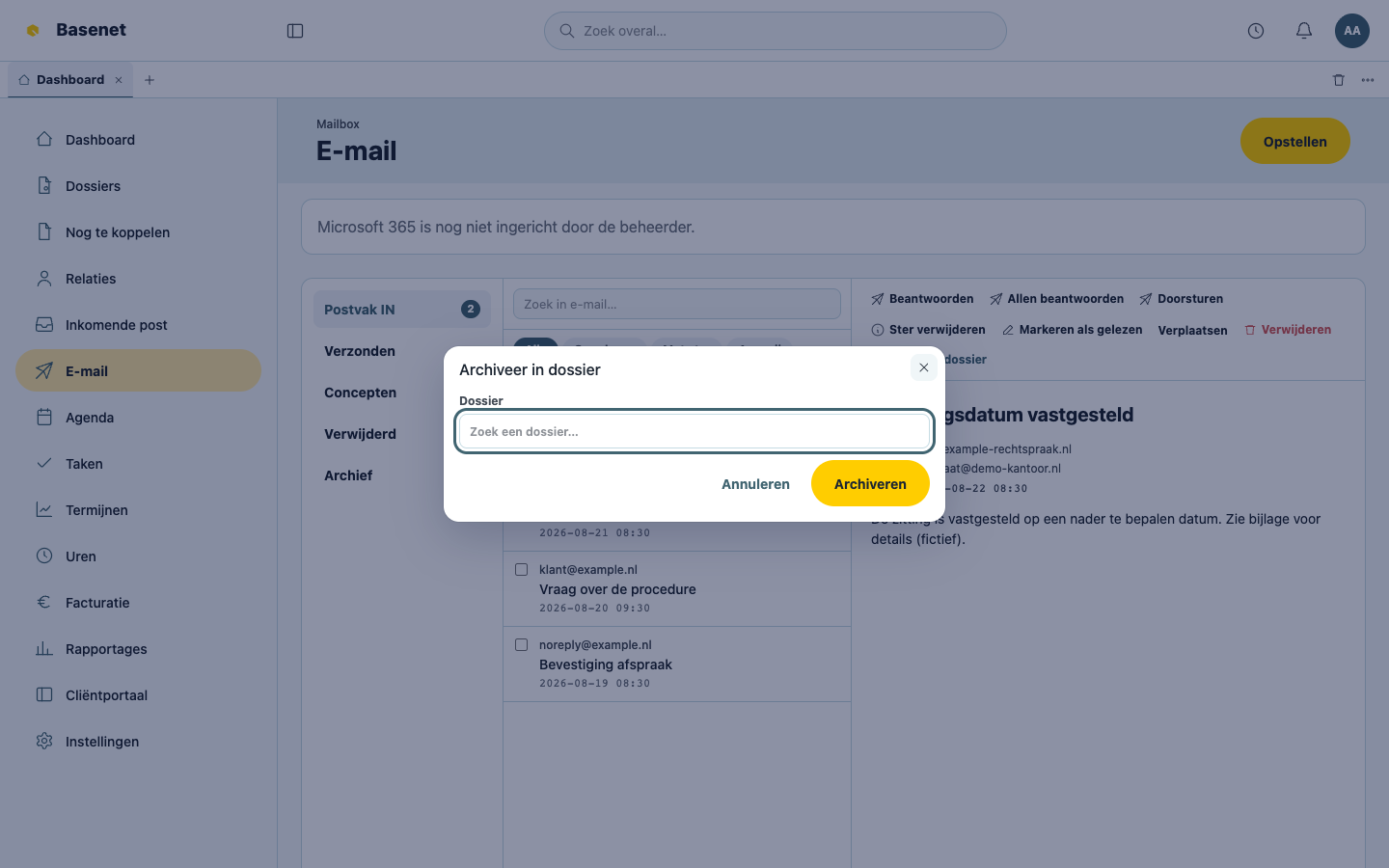
- Open the message and click “Archiveer in dossier” (file to matter).
- Search the matter (“Zoek een dossier…”) and click “Archiveren”.
- The message now also appears among the matter documents; jump to it via “Open document”.
From Outlook the same principle applies with the Basenet Outlook add-in: open the email, pick the matter, confirm. The email stays in Outlook and is also visible in the matter.
Writing a new email works with “Opstellen” (compose) in the mailbox. The editor supports headings, bold, italic, underline, strikethrough, lists, quotations, links, code blocks and undo/redo. Use Ctrl/Cmd+K to add, edit or remove a link without leaving the keyboard. Pasted Word/Outlook content is cleaned of Office-only formatting while lists and links are retained. Replies keep the earlier message in a collapsed quotation that you can expand and edit. Draft autosave continues while you write.
How to process incoming post
Documents that arrive without a matter (scans, client uploads, forwarded items) land in a queue:
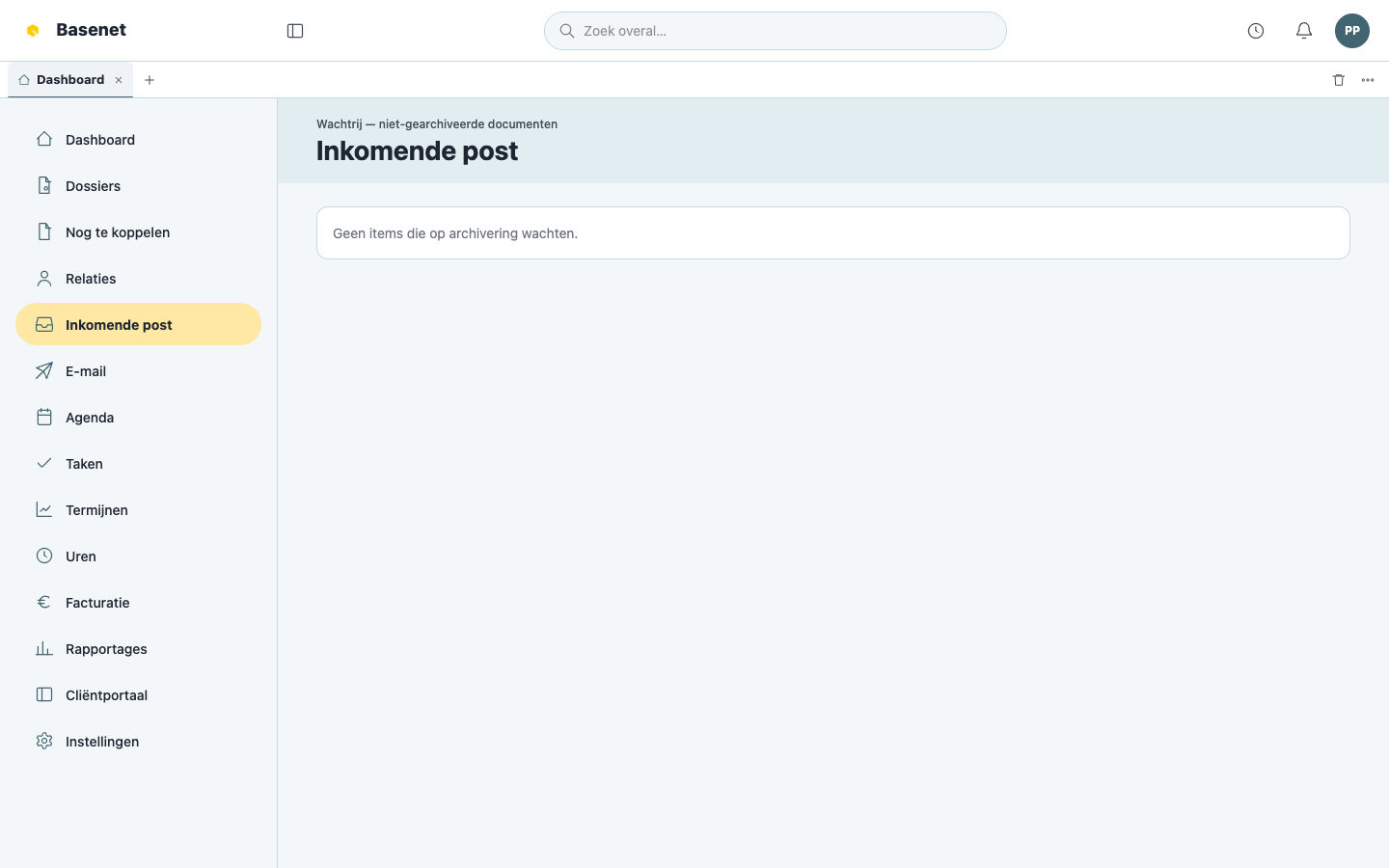
- Click “Inkomende post” (incoming post) in the left rail.
- For each item you see the “Bestand” (file), the “Bron” (source), the “Geëxtraheerde tekst” (extracted text), and possibly a “Suggestie” (suggestion) for the right matter — an AI proposal; you decide.
- Click “Archiveren”, check or choose the “Dossier”, the “Map”, and the “Type”, and click “In dossier archiveren” (file in matter).
- If the item doesn’t belong anywhere, choose “Afwijzen” (reject).
Who can see which documents?
Documents follow the confidentiality and “Toegangsniveau” (access level) of their matter. Unsure whether something may be shared (for example via the portal or a share link)? Check with the matter’s responsible lawyer first.