
Getting started
Logging in, navigating, searching, and understanding the dashboard in the Basenet staff app.
Nederlandse versie: /handleiding/aan-de-slag
What is this? This page gets you oriented the first time you log in to the staff app: what lives where, and where to start your day. The interface is in Dutch; on-screen names are quoted below.
How to log in
- Open the link to the staff app that your firm sent you.
- Enter your “E-mailadres” (email address) and “Wachtwoord” (password) and click “Inloggen” (log in).
- You land on your “Dashboard”.
Forgot your password? Ask your firm administrator to re-invite your account via “Instellingen → Gebruikers” (settings → users).
Finding your way: the left rail
The left rail holds the main areas. Which ones you see depends on your role and permissions:
- “Dashboard” — your start page with your matters, hours, tasks, and deadlines.
- “Dossiers” (matters) — the cases you work on: see Matters.
- “Relaties” (relations) — clients, opposing parties, and contacts: see Relations.
- “Inkomende post” (incoming post) — the queue of documents still to be filed to a matter.
- “E-mail” — your mailbox inside Basenet.
- “Agenda” (calendar) and “Taken” (tasks) — see Calendar & tasks.
- “Termijnen” (deadlines) — firm-wide deadline control: see Deadlines.
- “Uren” (hours) and “Facturatie” (billing) — see Time & billing.
- “Rapportages” (reports) — see Reports.
- “Cliëntportaal” (client portal) — manage client access to the portal.
- “Instellingen” (settings) — firm defaults and personal preferences: see Settings.
How to search
- Click the search field “Zoek overal…” (search everywhere) in the top bar.
- Type a matter name, client name, matter number, or keyword.
- Results are grouped (Dossiers, Relaties, Documenten, Taken, Termijnen, E-mail, Uren, Personen, Afdelingen). Click a result, or choose “Alle resultaten bekijken” (view all results) for the full search page.
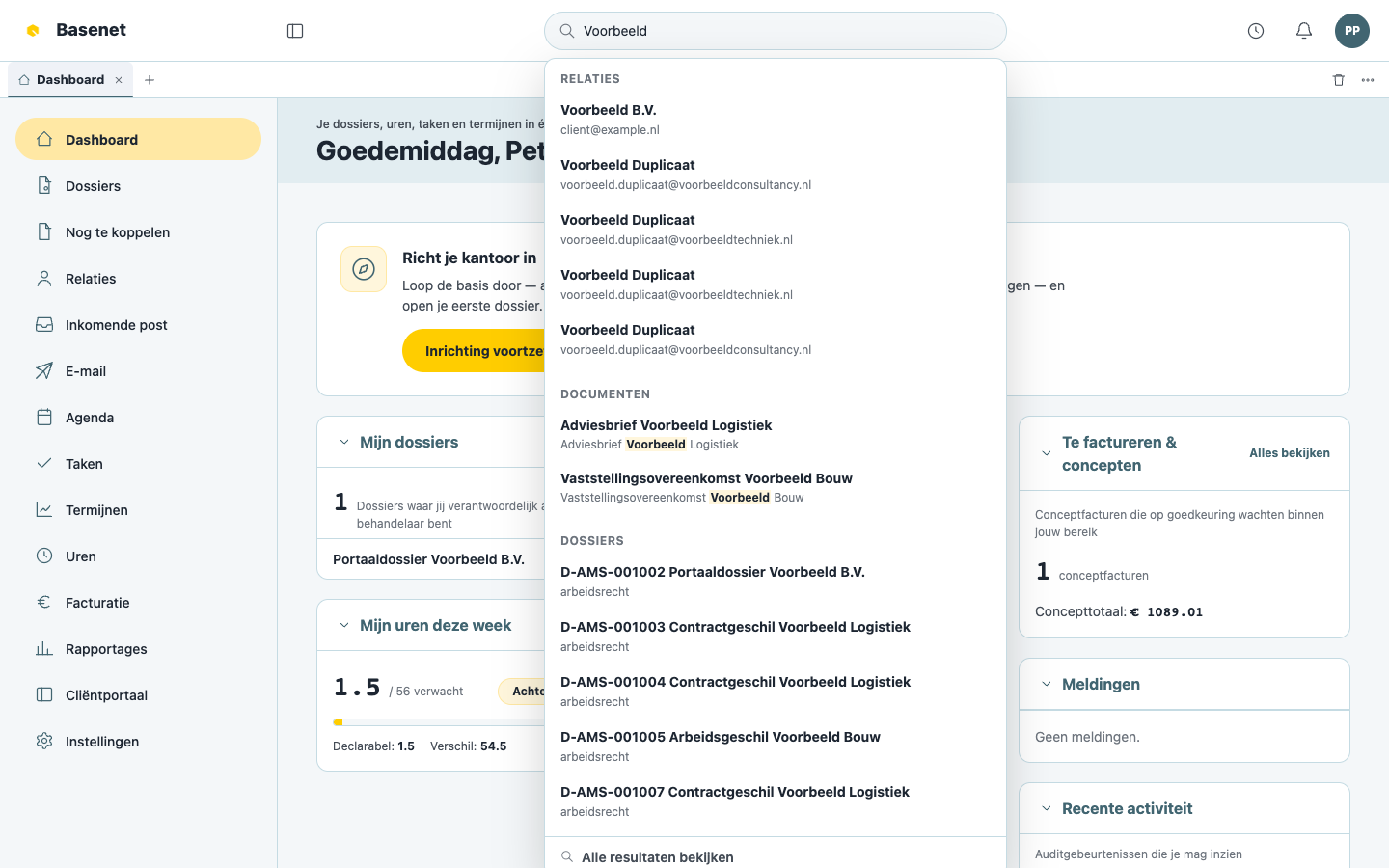
You only see results you have permission for — search is “filtered on permissions”.
Starting your day: the dashboard
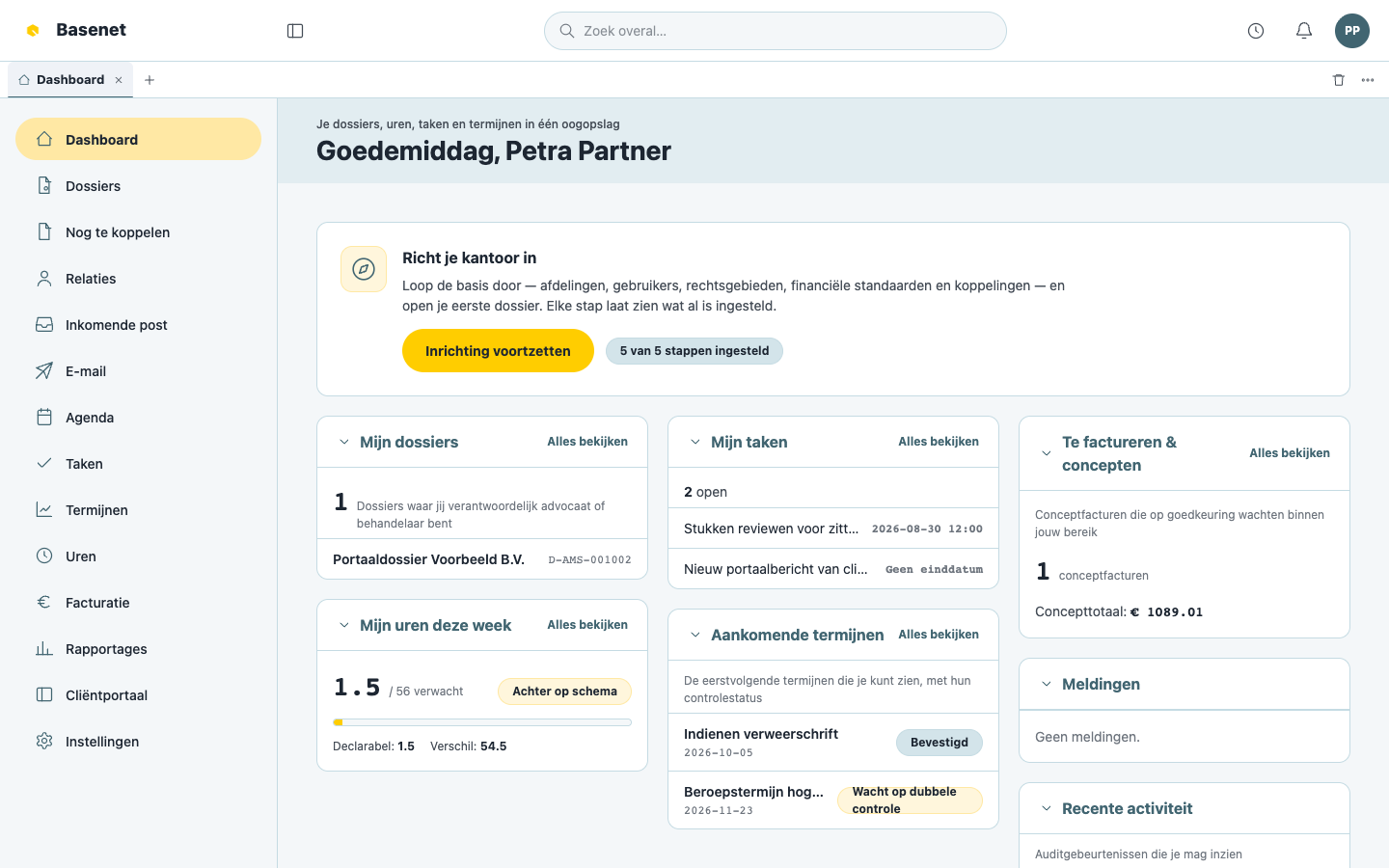
The dashboard shows widgets, each with an “Alles bekijken” (view all) button:
- “Mijn dossiers” — matters where you are the responsible or handling lawyer.
- “Mijn uren deze week” — hours written versus expected, with “Op schema” (on track) or “Achter op schema” (behind schedule).
- “Mijn taken” — your open tasks, with “Te laat” (overdue) flagged.
- “Aankomende termijnen” — the next upcoming deadlines with their check status (“Bevestigd” (confirmed) or “Wacht op dubbele controle” (awaiting second check)).
- “Te factureren & concepten” — draft invoices awaiting approval (visible with billing permissions only).
- “Recente activiteit” (recent activity) and “Meldingen” (notifications).
If an administrator is still setting up the firm, the dashboard also shows the setup card “Richt je kantoor in” — see Getting started: office setup.
How to log out
- Click your name in the top right (the user menu, “Aangemeld als …”).
- Choose “Uitloggen” (log out).
In the demo environment the same menu has “Wissel van persona” (switch persona), letting you view the app through the eyes of another demo role.