---
title: Time & billing
description: Writing time (stopwatch, quick entry, manual), write-offs, and from billing queue to sent invoice.
---
> Nederlandse versie: [/handleiding/tijd-en-facturatie](/handleiding/tijd-en-facturatie)
**What is this?** Time you spend on a case is recorded against the matter — even when the case isn't billed hourly (for example a fixed fee or legal aid). That way it's always visible how much work went into a matter. Invoicing happens per matter, from the recorded hours. The interface is in Dutch; on-screen names are quoted below.
## Three ways to write time
All three end up in the same hours administration of the matter:
### 1. With the stopwatch (while you work)
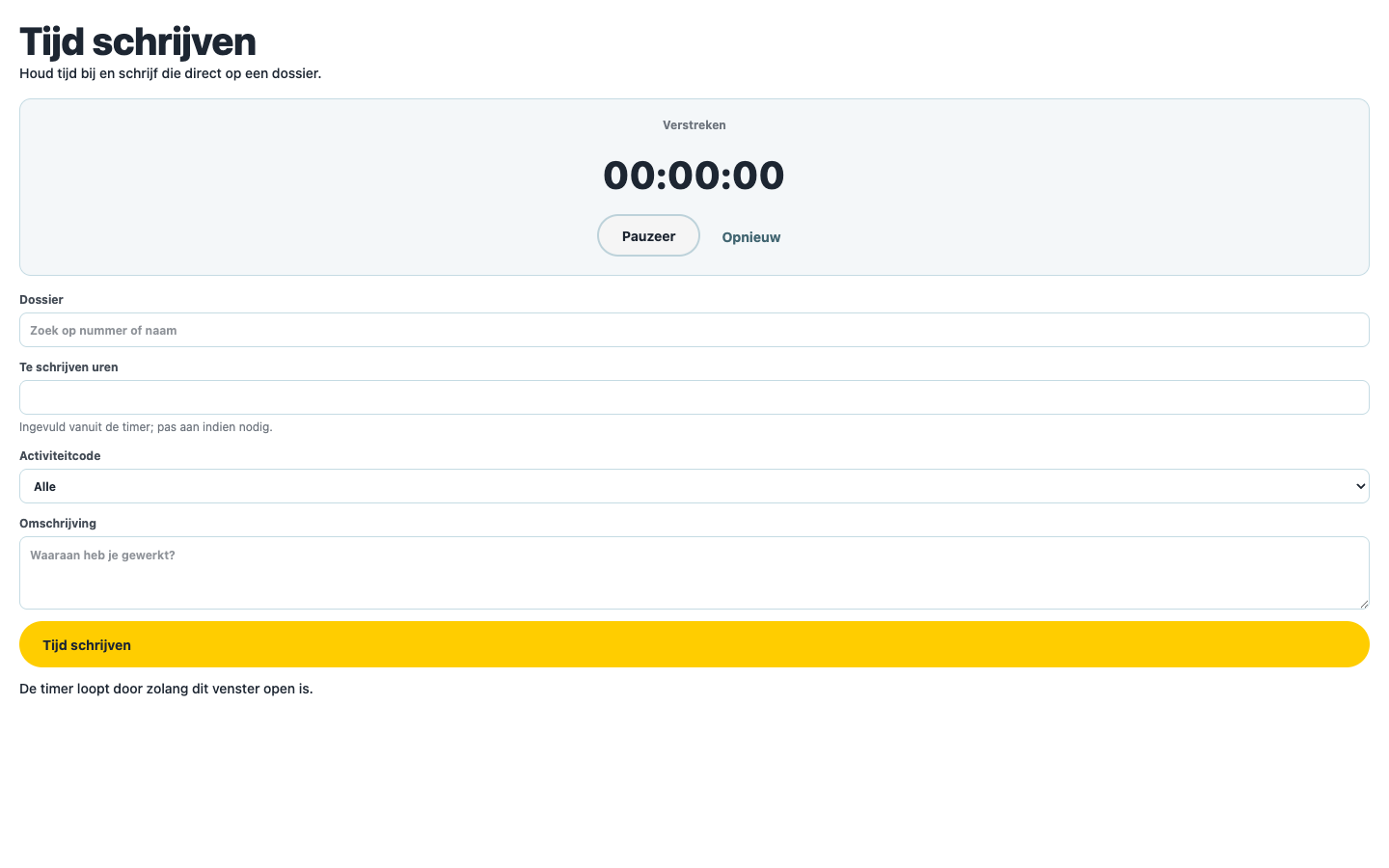
1. Click **"Tijd schrijven"** (write time) in the top bar. The stopwatch window opens.
2. Click **"Start"** when you begin; **"Pauzeer"** (pause) and **"Hervat"** (resume) work in between. The timer keeps running as long as the window is open.
3. Done? Search the **"Dossier"** (matter) (search by number or name), pick an **"Activiteitcode"** (activity code), fill in the **"Omschrijving"** (description — "Waaraan heb je gewerkt?", what did you work on?). The **"Te schrijven uren"** (hours to write) field is pre-filled from the timer — adjust if needed.
4. Click **"Tijd schrijven"**.
### 2. With quick entry (one typed line)
See it in action:
1. Click **"Uren"** (hours) in the left rail. At the top sits the **"Snelinvoer"** (quick entry) field.
2. Type one line in the format ` [activity] `, for example: `2024.001 1u30 advies Telefonisch overleg cliënt`. Accepted duration formats include `1u30`, `1:30`, `0,5`, `30m`, or `90`.
3. Check the **"Voorbeeld"** (preview — Dossier, Duur, Activiteit, Omschrijving) and click **"Toevoegen"** (add).
### 3. Manually or afterwards
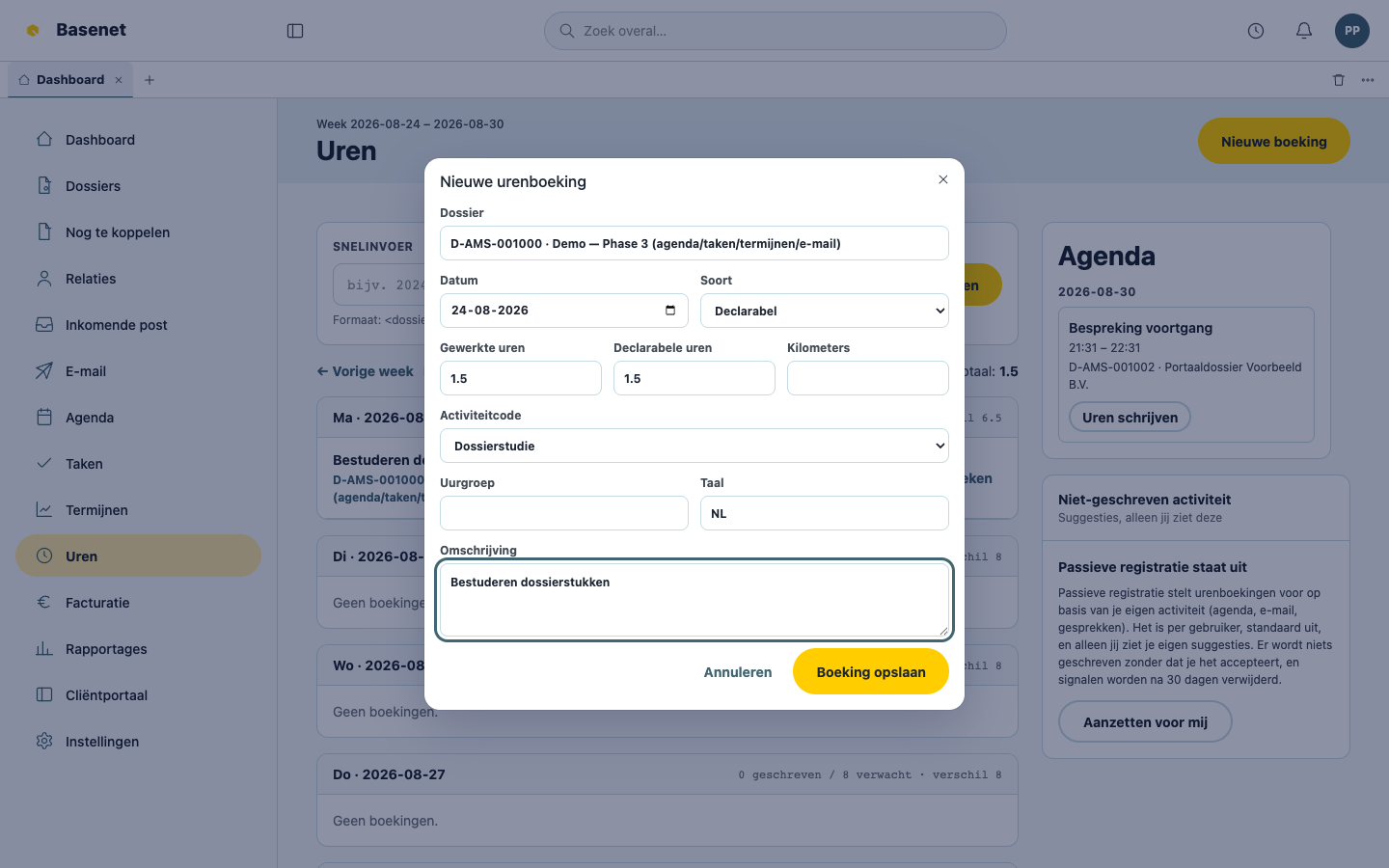
1. Click **"Uren"**, then **"Nieuwe boeking"** (new entry).
2. Search the **"Dossier"**, fill in **"Datum"** (date), **"Gewerkte uren"** (hours worked), **"Declarabele uren"** (billable hours), **"Soort"** (class — Declarabel, Intern, or Niet-declarabel), **"Activiteitcode"**, and **"Omschrijving"**.
3. Click **"Boeking opslaan"** (save entry).
The hours page shows your week with a **"Weektotaal"** (week total), and per week "geschreven" (written), "verwacht" (expected), and "verschil" (difference) — the same picture as the dashboard widget **"Mijn uren deze week"**.
### Suggestions from your own activity (optional)
Under **"Niet-geschreven activiteit"** (unwritten activity), Basenet can **propose** time entries based on your own calendar, email, and documents. This is off by default per user; turn it on with **"Aanzetten voor mij"** (turn on for me). Only you see your suggestions, and nothing is written unless you click **"Accepteren"** (accept) (**"Negeren"**, ignore, is always available).
## How to write off hours
To bill less than was worked (goodwill, training):
1. Click **"Afboeken"** (write off) on the time entry.
2. Fill in the **"Nieuw declarabel"** (new billable) number of hours and a **"Reden"** (reason — required).
3. Click **"Afboeking toepassen"** (apply write-off). The original hours worked stay recorded for realization reporting.
Hours on an invoice are locked and show the label **"Gefactureerd"** (invoiced).
## How to create an invoice
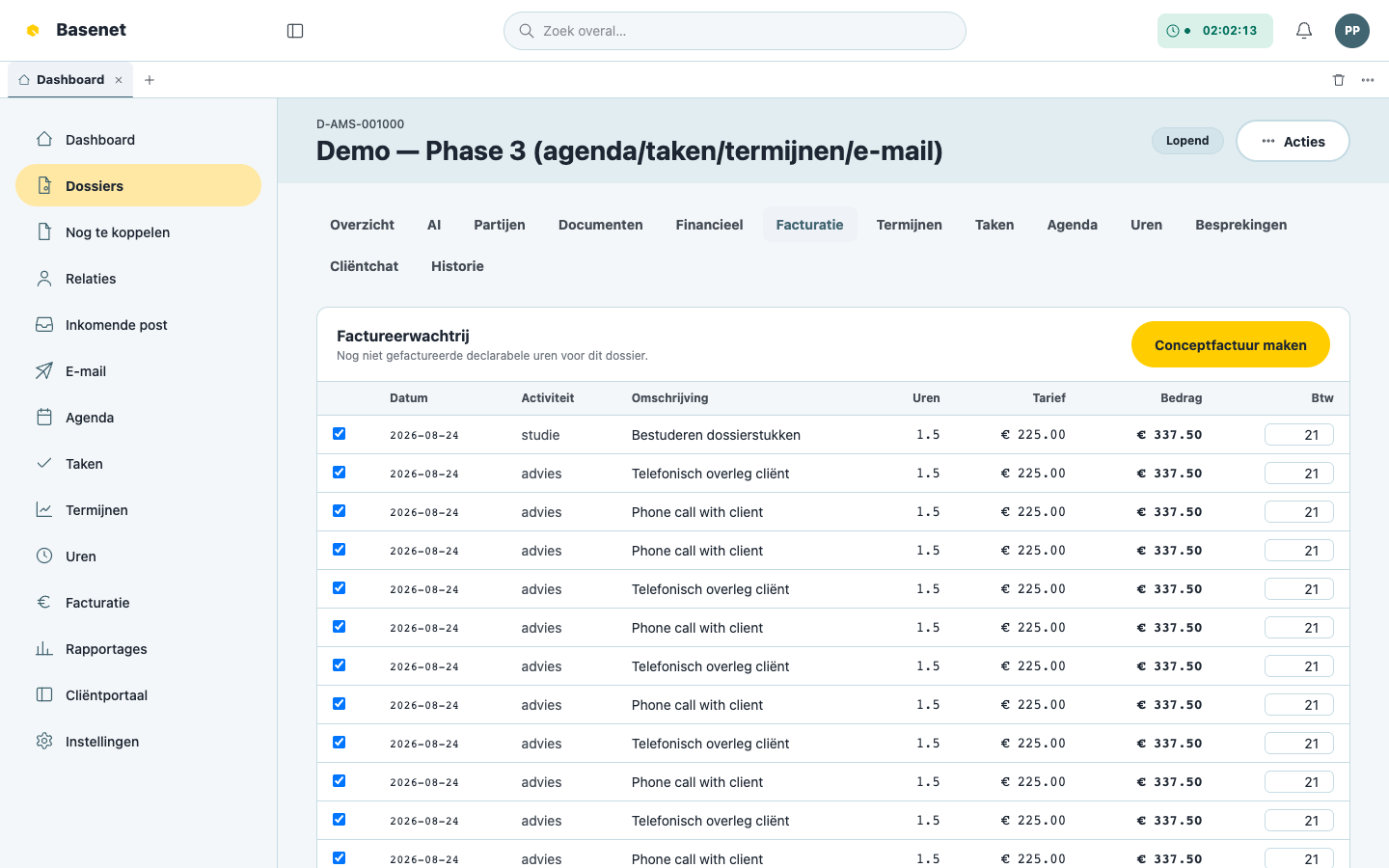
1. Open the matter and click the **"Facturatie"** tab.
2. The **"Factureerwachtrij"** (billing queue) lists the not-yet-invoiced billable hours, with **"Uren"**, **"Tarief"** (rate), and **"Bedrag"** (amount). Select the lines you want to invoice.
3. Click **"Conceptfactuur maken"** (create draft invoice).
4. Review the draft invoice (**"Netto"**, **"Btw"**, **"Bruto"**). You can:
- add a manual line or **"Correctie"** (correction) under **"Handmatige regels en correcties"** with **"Regel toevoegen"** (add line) (Aantal, Bedrag in euro);
- for a fixed-fee arrangement, tick **"Resterende vaste prijs opnemen"** (include remaining fixed fee).
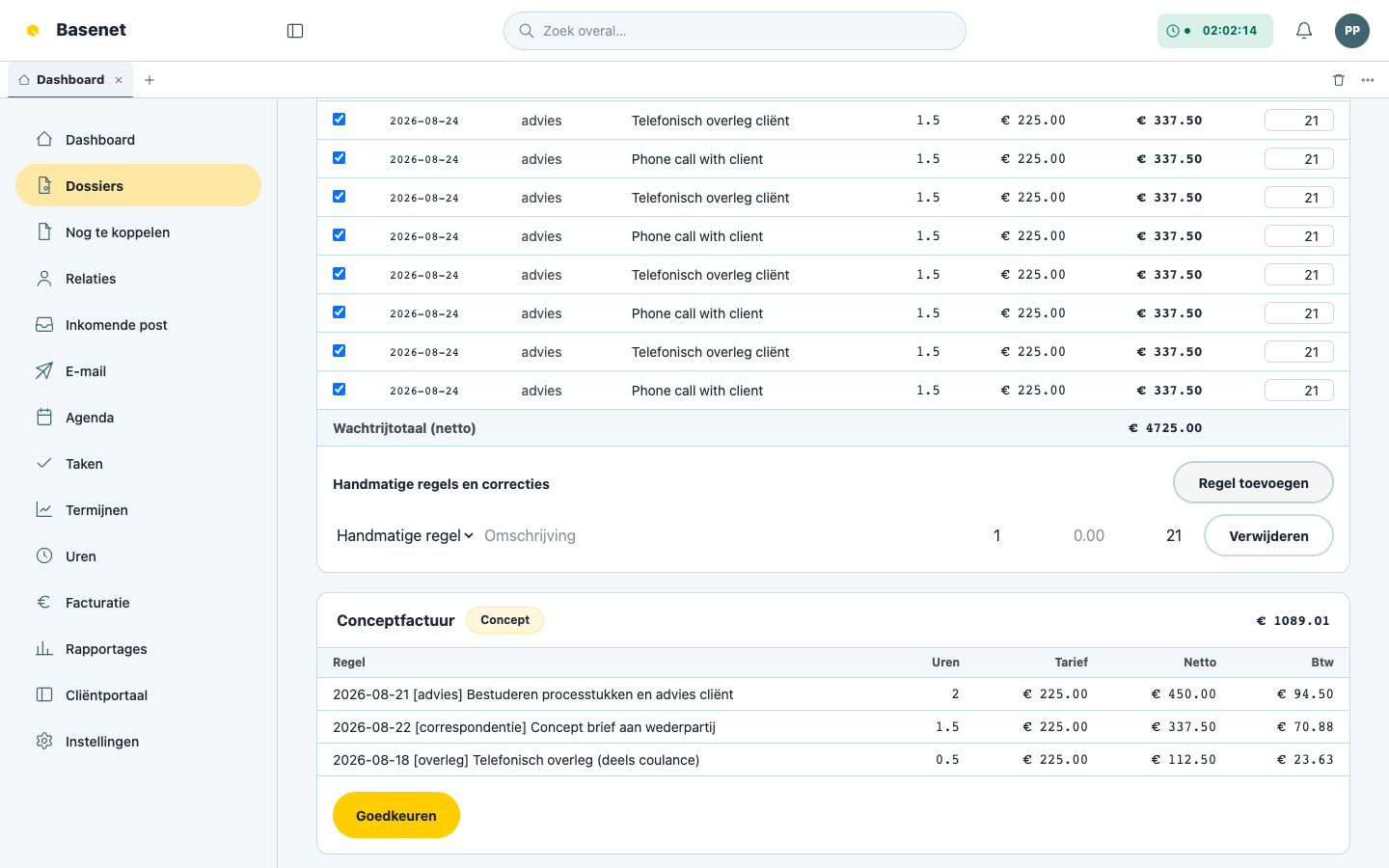
5. Click **"Goedkeuren"** (approve). The invoice gets a final **"Factuurnummer"** (invoice number).
6. Under **"Verzenden"** (send) pick the **"Kanaal"** (channel) — **"PDF"**, **"UBL"**, **"Peppol"**, or **"LEDES"** — and click **"Factuur verzenden"** (send invoice). The **"Peppol-status"** appears on the invoice afterwards.
7. Afterwards you can create a payment link ("Betaallink maken") for the client and forward the invoice to the connected accounting system with **"Naar boekhouding boeken"** (post to accounting).
The firm-wide invoice list lives under **"Facturatie"** in the left rail, showing per invoice the **"Status"** (Concept, Goedgekeurd, Verzonden, Betaald, Gecrediteerd) and the payment status.
## Fixed fees, legal aid, and other arrangements
The matter's **"Financieel"** tab holds the **"Financiële afspraak"** (financial agreement): **"Standaardtarief (€/u)"** (standard rate), **"Vaste prijs (€)"** (fixed fee), **"Voorschot (€)"** (advance), rate exceptions per employee, **"Factuursplitsingen"** (invoice splits — multiple payers), and **"Gefinancierde rechtsbijstand (toevoeging)"** (legal aid) with the **"Eigen bijdrage (€)"** (client's own contribution). For a legal-aid matter that doesn't continue as an hourly case, Basenet blocks hourly invoicing.
## What does Peppol mean?
**Peppol** is a secure, Europe-wide delivery channel for electronic invoices: the invoice arrives directly and accurately in the recipient's accounting system instead of as a loose PDF attached to an email. See also the [Glossary](/guides/glossary).